Find your way around
A tour of the sidebar, the top bar, your account menu, the home screen and the credits panel — so you know where everything lives.
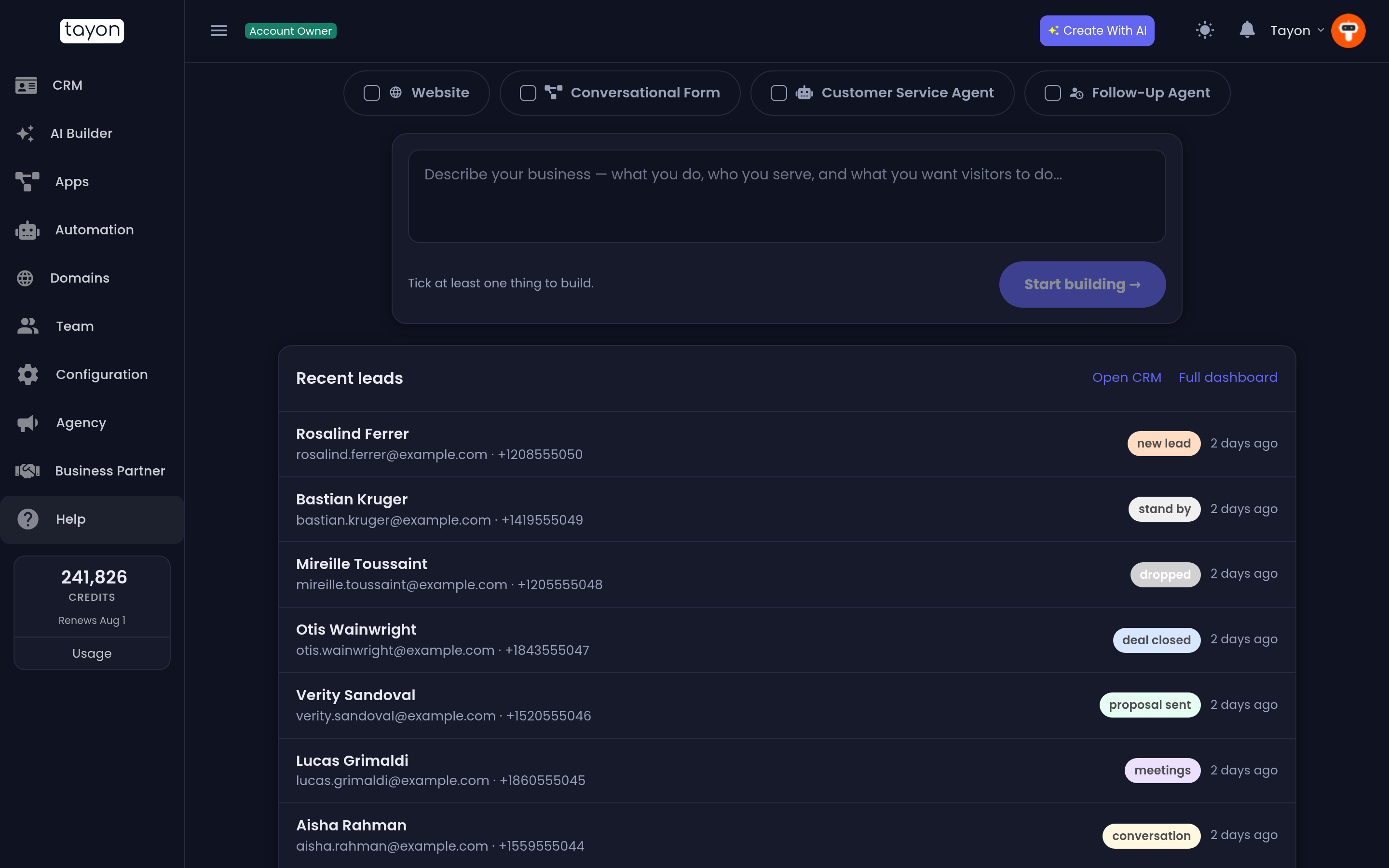
Tayon has one sidebar on the left, one bar across the top, and a home screen in the middle. That is the whole interface.
 123
123- The section menu
- Your credit balance
- The top bar
#The sidebar
Each icon opens a group of screens. Hover or click to see what is inside.
| Section | What lives there |
|---|---|
| CRM | Leads, Dashboard, Messenger, Campaigns and Templates — everything about the people you are talking to |
| AI Builder | The starting point for anything you want Tayon to build for you |
| Apps | The things you have built and the tools around them: Conversational Forms, Websites, Calendar, Images library, Content Pages, Email Accounts, and Payments — the money your sites have taken |
| Automation | What runs on its own: Flows, Prompts, Bot Pages, Bots and Voice AI |
| Domains | Buy a domain, connect one you already own, and manage its records — see Domains |
| Team | Members and Groups, and what each person is allowed to see |
| Configuration | Tags, Qualities, Stages, WhatsApp & AI, Messenger Shortcuts and Payment Connections |
| Agency | Your clients’ accounts, if you run an agency — or the page to become one |
| Business Partner | The partner programme: join it, then follow your referrals and payouts |
| Help | This help site |
A few of these open a hub rather than a single list:
- Bots opens cards for Bot Configuration, Bot Links and Bot Access.
- Voice AI opens cards for Numbers, Call Logs and Campaigns.
#The top bar

From left to right:
- Your role badge — Account Owner or Team Member. While you are working inside another account it becomes a pill reading Accessing: and that account’s name.
- Return to My Account appears while an agency is working inside a client’s account. My Linked Accounts appears if you have been given access to other accounts, and switches between them.
- Create With AI is a shortcut to the AI Builder from anywhere in the app.
- Upgrade Your Plan opens the plans, for account owners.
- The sun / moon button switches between light and dark mode. The choice is remembered on that browser.
- The bell shows notifications — things finishing, imports needing approval, messages that failed.
- Your name opens the account menu.
#The account menu
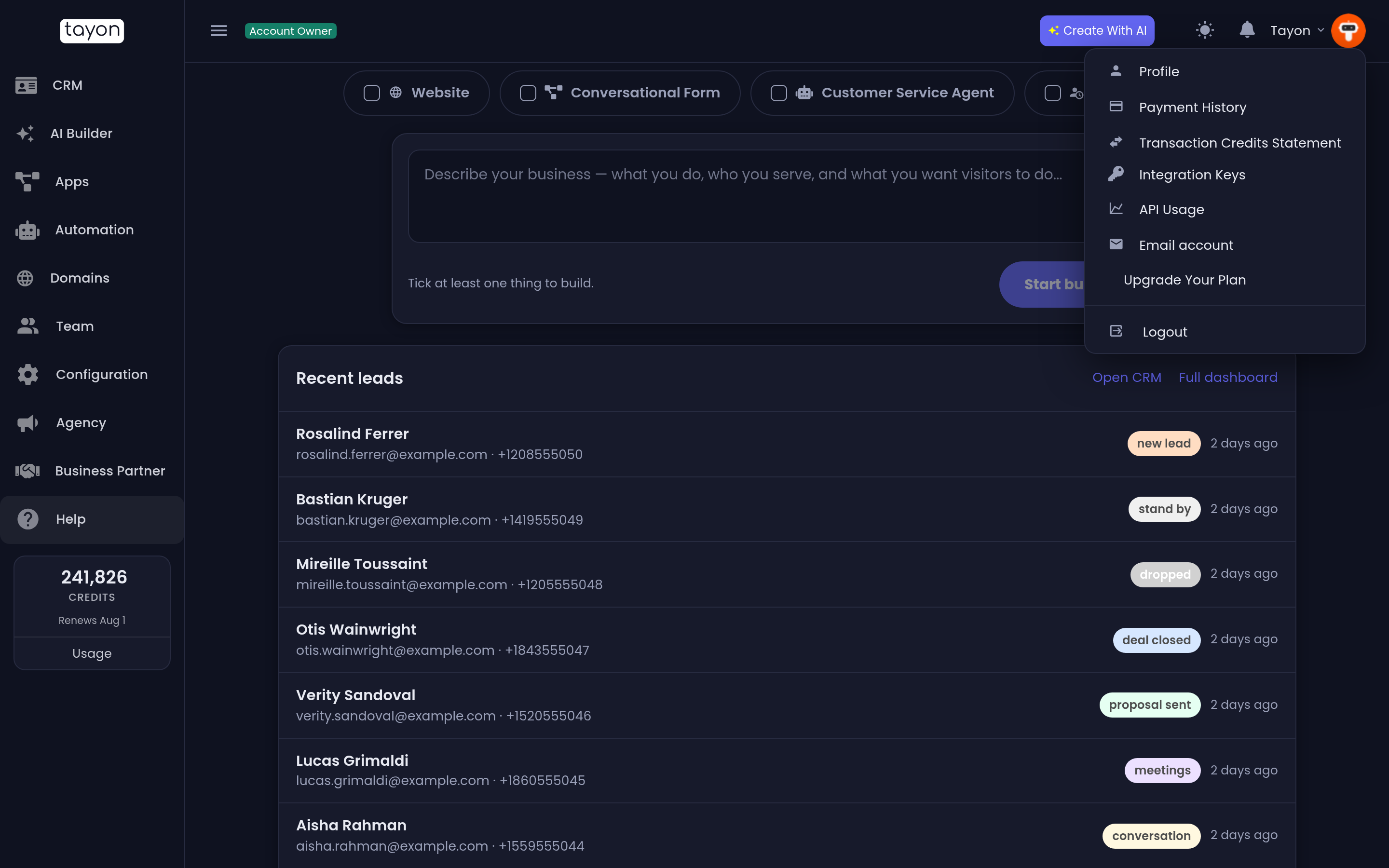
Choose your name at the right of the top bar.
| Item | What it is for |
|---|---|
| Profile | Your details, language, password and two-factor authentication |
| Payment History | Your plan, renewal date and every charge, with receipts |
| Transaction Credits Statement | Every credit spent or added, line by line |
| Integration Keys | Login links, integration keys and API keys — see Integration keys and API usage |
| API Usage | What your API keys did |
| Grant agency access / Remove agency permission | Let an agency manage your account, or end that — see Manage client accounts as an agency |
| Email account | The mailbox Tayon sends your messages from — see Choose the address your messages are sent from |
| Upgrade Your Plan | The plans |
| Logout | Sign out on this browser |
Billing, keys and agency items are for the account owner. Team members see Profile, Email account and Logout.
#The home screen
The home screen changes shape depending on how far along you are.
When your account is new, it leads with a prompt box: describe what you want, pick what kind of thing it is, and press Start building. Above it, a card — Set up your whole business in a few minutes — offers Start the quick setup: domain, website, form, AI assistant, email and phone in one guided flow. See Quick start. The card disappears once you have finished the quick setup.
Once you have leads or something built, it switches to a working view — the same prompt box, now compact at the top, with Recent leads underneath and links straight through to Open CRM and Full dashboard.
#The credits panel
At the bottom of the sidebar you always see your credit balance, where it came from or when it next renews, and a Usage button that opens the breakdown. Choose the balance itself to buy more credits.
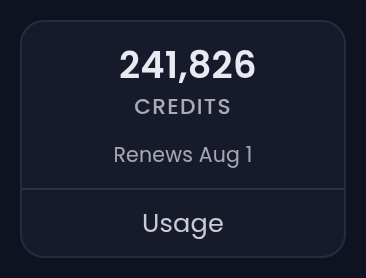
Credits are what Tayon spends when it does work for you — generating a page, answering a chat, sending a message, placing a call. See Plans and credits for what costs what.
#Finding a screen quickly
Two habits save a lot of clicking:
- Use the section icons rather than going back to the home screen each time — the sidebar is always there.
- Bookmark the screens you use daily. Every screen in Tayon has its own web address, so a bookmark takes you straight in.
Updated: