Sync bookings with Google Calendar
Link a booking calendar to a Google Calendar so bookings appear there, busy times stop being offered, and changes in Google come back to Tayon.
You’ll need: A saved calendar, and a Google account you can sign in to.
If your day already lives in Google Calendar, link it to your Tayon booking calendar. Then nobody can book you over a dentist appointment you added in Google, and every booking appears in Google next to everything else.
#What syncing does
Once a Tayon calendar is linked to one of your Google calendars:
- Bookings go to Google. Each new booking is added to the linked Google calendar. The person who booked is added as a guest if they gave an email.
- Busy times in Google are not offered. A time that is busy in the linked Google calendar disappears from your booking page and forms. An all-day event closes the whole day.
- Changes in Google come back. If you move a booked appointment in Google, Tayon updates it. If you delete it in Google, Tayon cancels it and sends you a notification.
Each Tayon calendar is linked on its own. You can send your Discovery call bookings to one Google calendar and your Consultation bookings to another.
#Link a calendar
- Open Apps > Calendar and choose the edit icon on the calendar.
- Scroll down to the Google Calendar card.
- Choose Connect with Google, and sign in to Google.
- Allow Tayon to access your calendars. You come back to the same Tayon calendar.
- Under Select a Google Calendar, pick the Google calendar to sync with.
- Choose Save.
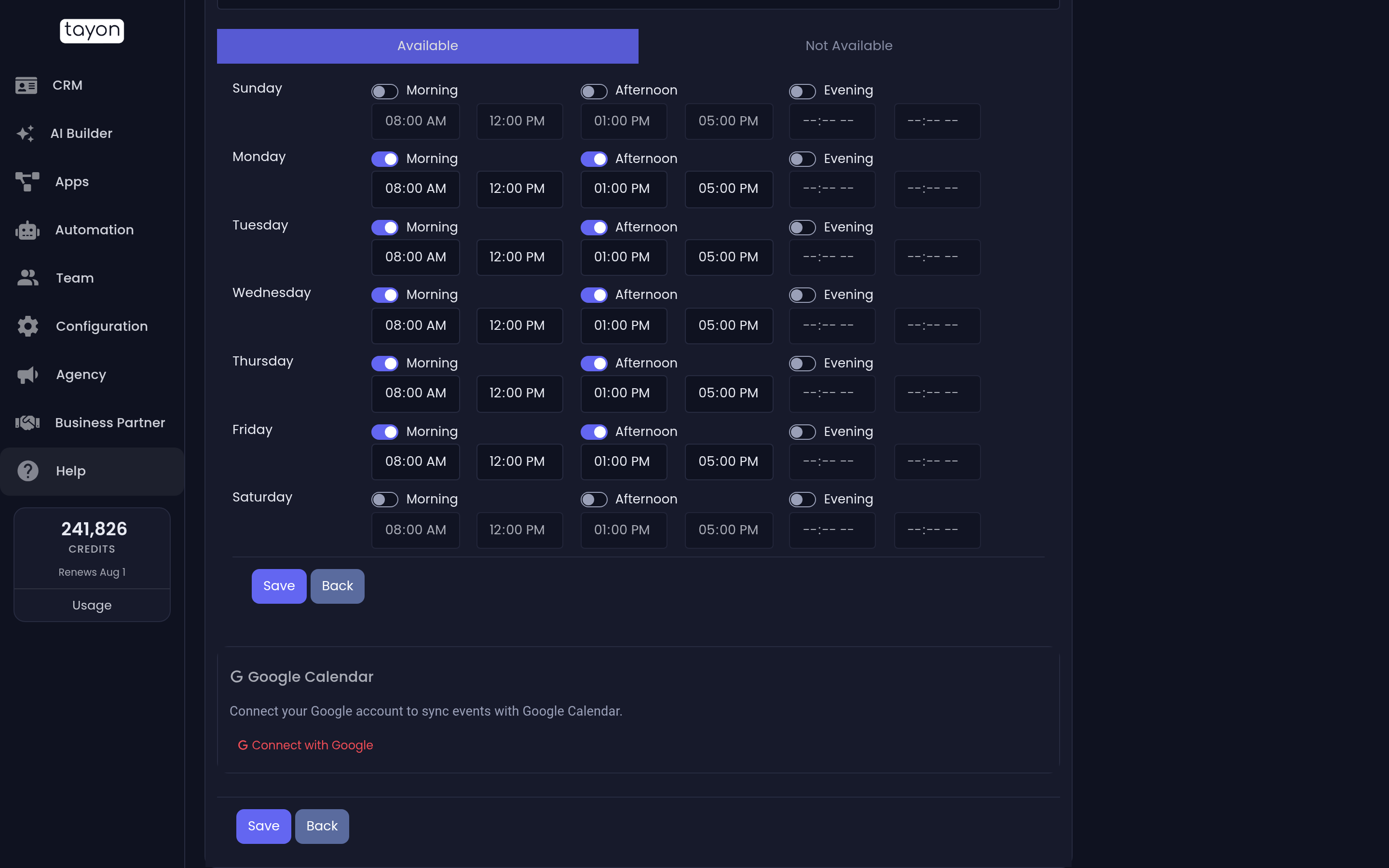
Connect with Google only works on a saved calendar. On a new one you see Please save the calendar first before connecting Google. Save it, then try again.
You only connect your Google account once. For your other calendars, go straight to Select a Google Calendar and pick one.
#Unlink a calendar
On the calendar’s Google Calendar card, choose Disconnect. It takes effect straight away, and you see Google Calendar disconnected. Bookings stop going to Google, and Google’s busy times stop blocking your booking page. Appointments already copied to Google are not deleted from it.
#The Google Calendar Configuration screen
If you connect Google from the App Integrations page rather than from a calendar, you land on Google Calendar Configuration. It lists every Google calendar on your account with two columns:
| Column | What it is for |
|---|---|
| Send Events | The one Google calendar that receives events and is watched for changes. Only your Primary calendar, or one created for the purpose, can be chosen. Others read Only primary or Calendar App calendars can receive events |
| Check Availability | Calendars to check for conflicts |
A calendar marked Shared belongs to someone else. It shows Requires ownership, because Tayon can only watch calendars you own.
The link you set inside each booking calendar is what decides where that calendar’s bookings go and which busy times it respects. If something does not sync, check the calendar’s own Google Calendar card first.
#If something does not sync
- A booking did not appear in Google. Open the calendar and check Select a Google Calendar is set and saved. A calendar with None selected does not sync.
- A busy time in Google is still offered. The event is probably in a different Google calendar from the linked one. Move the event, or link the calendar it is in.
- Tayon asks you to reconnect. Google access expires now and then. Choose Reconnect with Google when you are asked, and sign in again. Sync continues once you are back.
- You connected the wrong Google account. Use Disconnect Google in the Google integration on the App Integrations page. Then choose Connect with Google on the calendar again and sign in with the right account.
Updated: