Get your Voice AI phone number
Buy the phone number your AI agent answers, choose the agent, greeting, language and voice, and set when it should end a call.
businessYou’ll need: The Business plan, and the Voice AI permission with editing rights.
Your AI agent needs a phone number to answer and to call from. This article covers getting the number and deciding how the agent answers it.
Numbers come from Tayon. You do not need an account with a phone company, and Tayon never asks you for one.
AutomationVoice AINumbers
#One number per account
Each account can hold one voice number. Once you have it, the Buy Number button is replaced by Your plan allows 1 voice number(s). Contact support to add more. If you need a second line, contact support. They can raise the limit for your account.
#Buy your number
- Open Numbers and choose Buy Number.
- Pick a Country: United States, United Kingdom, Canada, Australia or Brazil.
- To narrow the search, enter an Area Code (optional) or the Last Digits (optional) you would like.
- Choose Search Available.
- Choose Buy next to the number you want.
The number appears in the list straight away with the status Active. If the search finds nothing, try a different area code or leave the optional fields empty.
#Decide how the agent answers
A new number does not answer until you assign an agent to it. A caller who reaches a number with no agent hears “Sorry, no agent is available” and the call ends.
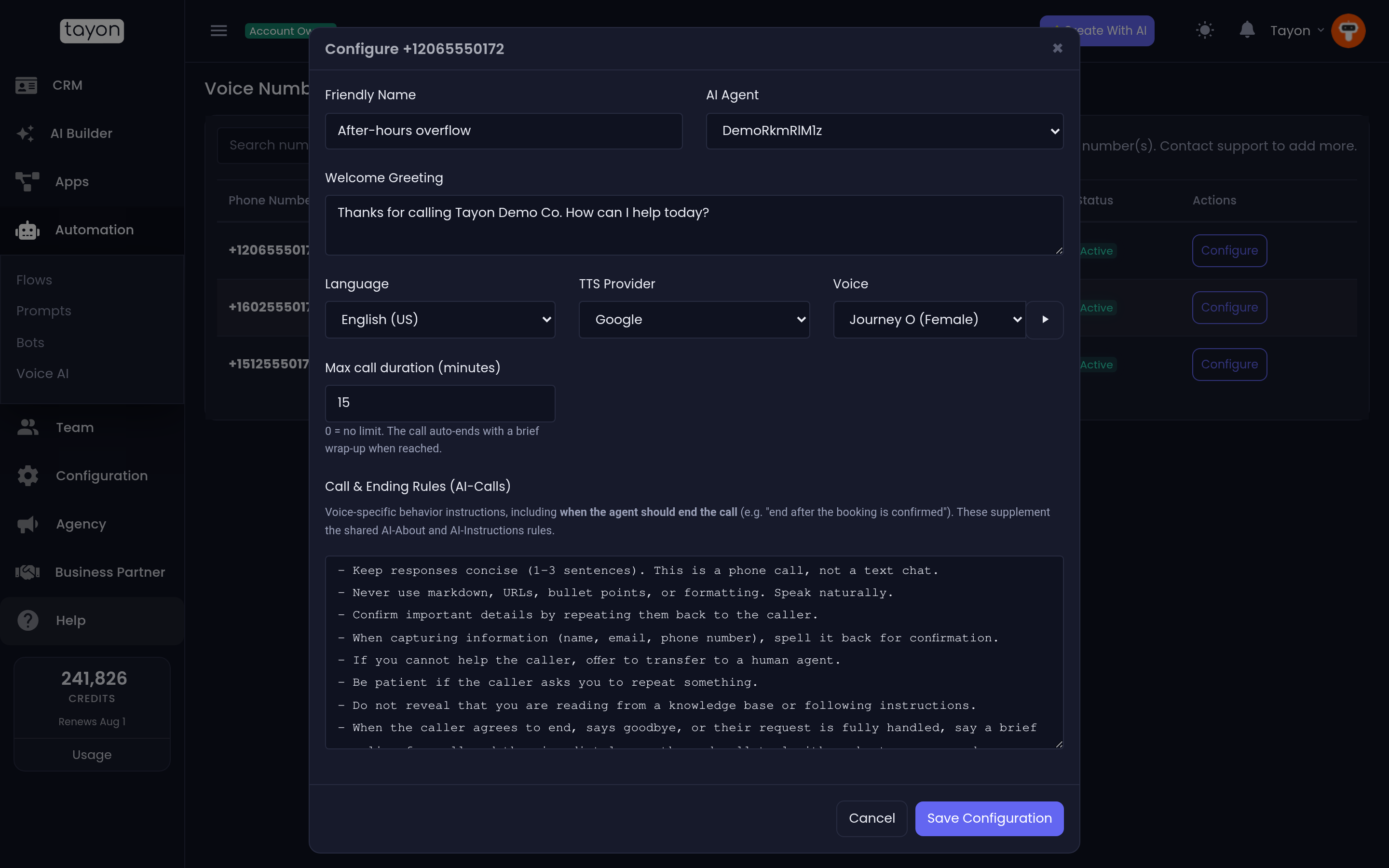
- Choose Configure on the number.
- Give it a Friendly Name you will recognise, such as Sales Line.
- Choose the AI Agent that should answer. Default (main assistant) uses your account’s main prompts.
- Write the Welcome Greeting. This is the first thing the caller hears.
- Choose the Language, then a TTS Provider and a Voice. Use the play button next to Voice to hear a sample.
- Set Max call duration (minutes) if you want a safety limit.
- Review Call & Ending Rules (AI-Calls), then choose Save Configuration.
#The settings in more detail
| Setting | What it does |
|---|---|
| Language | The language the agent starts the call in. If the caller speaks English, Portuguese or Spanish, the agent can switch to that language during the call. |
| Voice | The voice the agent speaks with. The list changes with the language and provider you pick. |
| Max call duration (minutes) | 0 means no limit. When the limit is reached, the agent says a short goodbye and ends the call. |
| Call & Ending Rules (AI-Calls) | Instructions for phone calls only, especially when the agent should hang up, for example “end after the booking is confirmed”. These rules are added to the agent’s Business Info and Instructions. They do not replace them. |
Call & Ending Rules starts with sensible default text. Edit it rather than deleting it. Without ending rules, the agent keeps a finished call going longer than it should. These rules are stored as a prompt of type Voice Agent. Every number that uses the same agent shares them.
#Turn a number off for a while
Select the Active badge to switch the number to Inactive. Select it again to switch it back. While the number is inactive, callers hear “Sorry, this number is not configured” and the call ends. The number stays yours, and no calls are charged.
Campaigns can only use active numbers.
#If you change plan
Voice AI is part of the Business plan. If your account moves to a plan without it, your number is switched to Inactive but you keep it. It works again if you return to the Business plan.
Updated: