Share your booking page
Copy your calendar's public booking link or embed it on your website, and see what happens when someone books.
You’ll need: A saved calendar. Team members need the Conversational Forms permission.
Every calendar has its own public booking page. Anyone with the link can pick a time and book you, with no account and no login. This article shows you where to find the link, how to put the page on your website, and what happens after someone books.
#Get the link
- Open Apps > Calendar and choose the edit icon on a calendar.
- At the top, find the Public booking page card.
- Choose Copy to Clipboard next to the link. To see the page as a visitor would, choose the open button between the link and Copy to Clipboard.
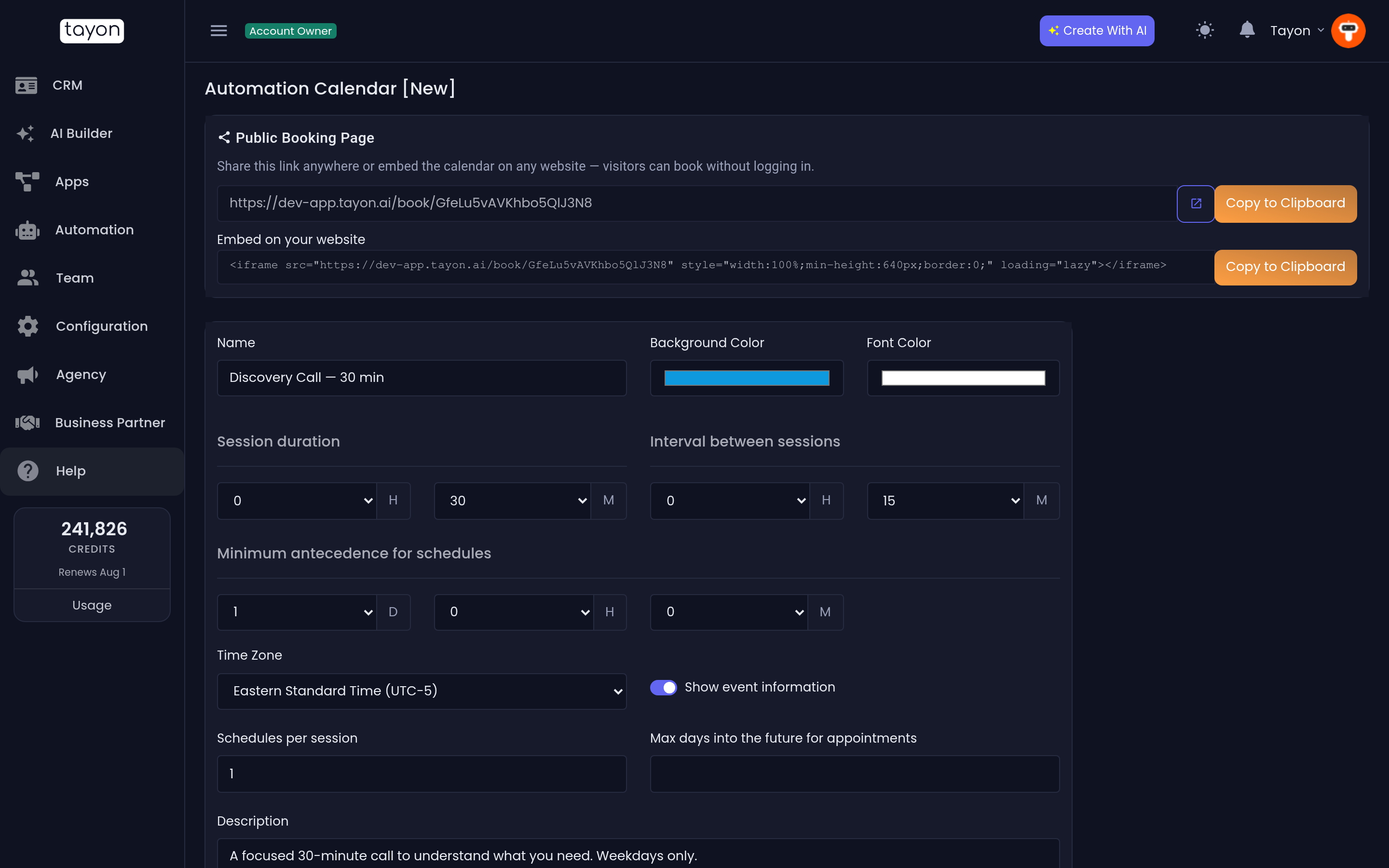
The card only appears once a calendar has been saved. A brand-new calendar shows it after the first Save.
Paste the link wherever people look for you: your email signature, social profiles, WhatsApp replies or a button on your site. Each calendar has its own link, so share the one that matches the appointment.
#Embed it on your website
Under Embed on your website, choose Copy to Clipboard to copy a ready-made snippet. Paste it into your website’s HTML where the calendar should appear. It fills the width of the space you put it in and is at least 640 pixels tall.
Your website builder must let you add custom HTML or an embed block. If it does not, link to the booking page with a button instead.
#What the visitor sees
The page shows your calendar’s Name, its Description, the appointment length and the Place. The visitor then books in three steps:
- Pick a date. Dates with free times are shown as buttons. The arrows change the month, and the page opens on the first month with availability.
- Pick a time from the times free on that day.
- Fill in their details under Your details: name and email are required, phone is optional. Then choose Confirm booking.
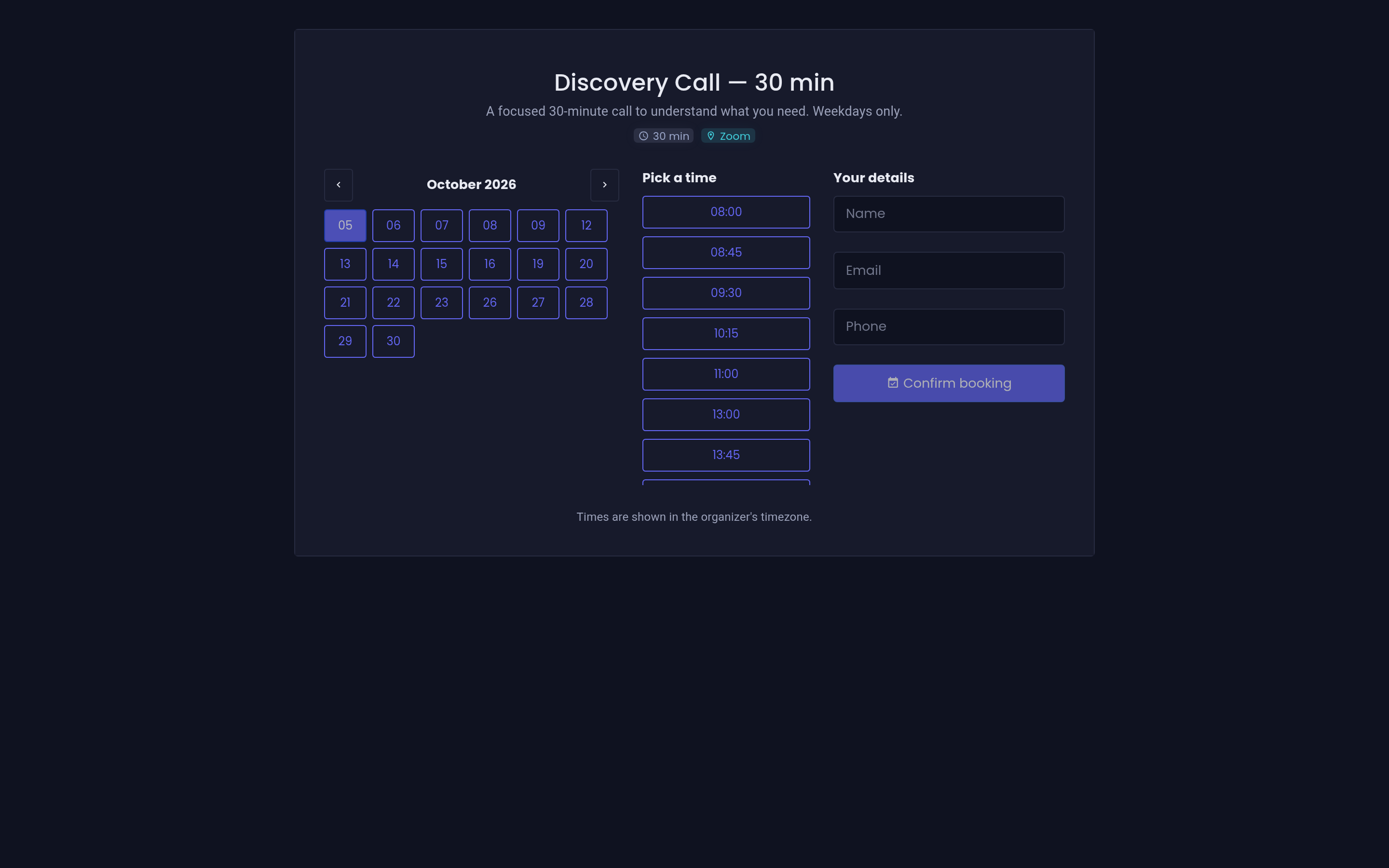
They then see Booking confirmed! with the date and time.
If two people try for the same time, the second one sees Sorry, that time was just taken. Please pick another one. and picks again.
#What happens when someone books
- The appointment is created on the calendar and appears in View Schedules. That time is no longer offered anywhere, including in forms and to your AI agent.
- The visitor becomes a lead. Tayon first looks for an existing lead with the same email or phone, so a returning customer is not duplicated. If there is no match, it creates a new lead. If the calendar’s Host is a team member, the new lead is assigned to them.
- The host gets a notification in Tayon, titled New event schedule, with the date and time.
- Google Calendar is updated if the calendar is linked to one. See Sync bookings with Google Calendar.
New leads from bookings show up in your leads list like any others, so you can follow up from there. See Find the leads you need.
#Bookings inside a form
To ask questions first and book at the end, add a Calendar step to a conversational form instead of sending people to the booking page. Both take bookings from the same calendar, so they never double-book. See Choose the right kind of question.
#If the page shows no times
- No available dates this month. Every day is closed, fully booked, or inside your minimum notice. Check the Available tab and Not Available dates on the calendar.
- No available times on this date. That day’s periods are full or too soon. Lower Minimum antecedence for schedules if it is set high.
- The link shows an error page. The calendar has been deleted. Share the link from a calendar that still exists.
Updated: