Build everything at once
Tick more than one thing on the start screen and Tayon builds them together from a single description, wired into each other.
You’ll need: Enough credits to cover every artifact you tick — Tayon checks the total before it starts.
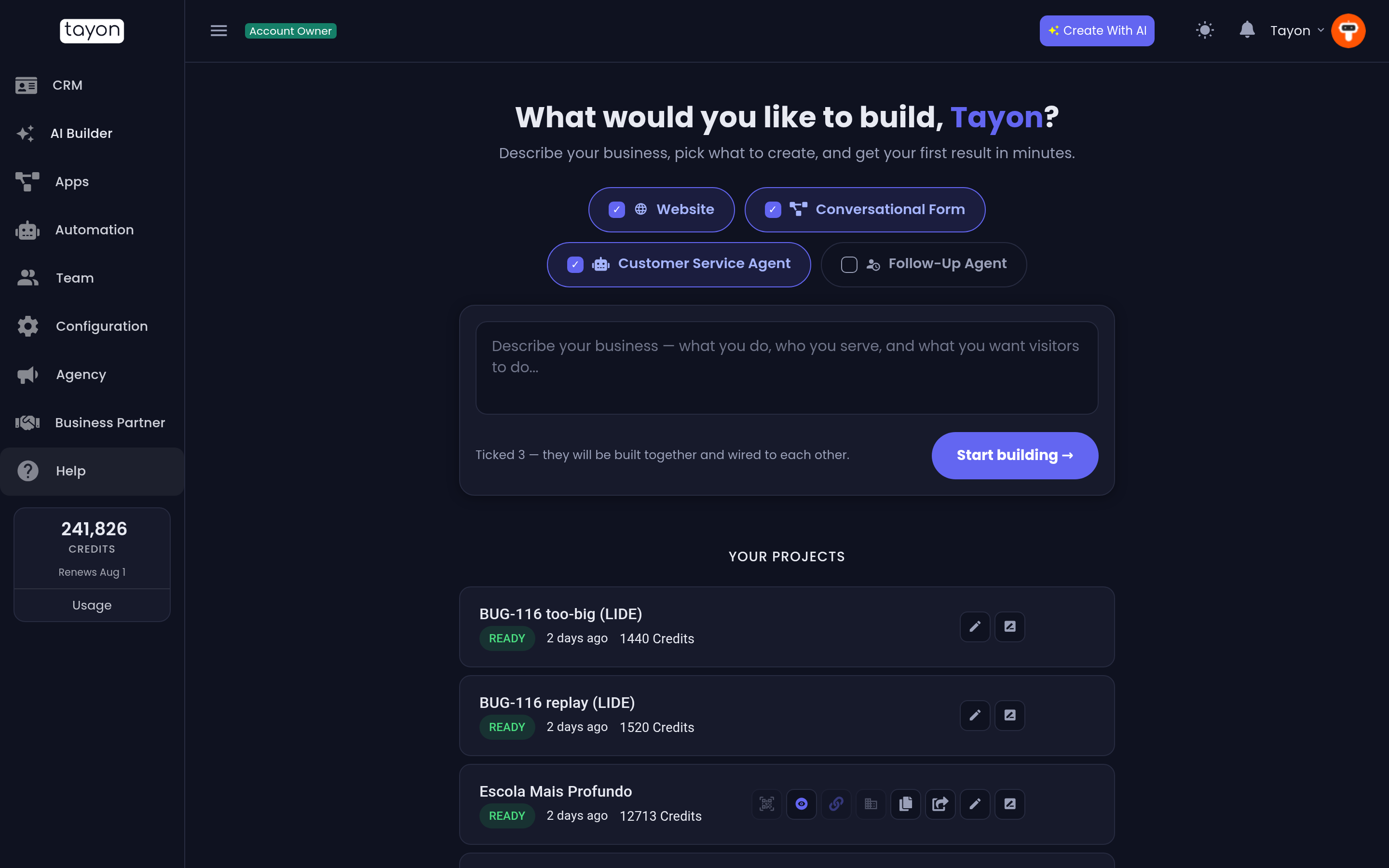
The start screen lets you tick more than one thing. Tick one and you go straight into that builder. Tick two or more and Tayon builds them together from the same description, and connects them to each other.
The hint under the box tells you when that is about to happen: “Ticked 3 — they will be built together and wired to each other.”
#Describing it once
You write one description for the whole set, not one per artifact. Say what the business does, who it serves, and what you want visitors to do — the same advice as for a single build. See Describe what you want so the builder gets it right.
Tayon then asks up to three follow-up questions, once, before anything is generated. That cap is deliberate: it asks for what it genuinely cannot infer and then gets on with it.
#Starting from your existing site or a design
Under the description box, Or start from something you already have works for a set too:
- HTML files (ZIP) or Screenshots of your current site. Website stays ticked, because the files are a website. You do not need to write a description, and there are no follow-up questions: the build starts as soon as you choose Start building. The form and the agent are written from your site’s own words.
- A picture of my design. The website is designed from it. The follow-up questions still run, because a picture shows how things look, not what they say.
Either way, the colours of your site or picture carry over to the form and the agent’s chat widget, so all three match.
The rebuilt site keeps its own pages, and links to its new form: the form is added to its menu, and the button your old contact form becomes points at it.
See also Rebuild a website from screenshots and Use a picture as your design.
#Watching it build
Everything happens on one screen, which is the destination rather than a waypoint — you are not redirected anywhere when it finishes.
The form and the customer service agent are generated first, at the same time. The website is built after them, because it needs to know where the form lives before it can link to it. The chat widget is embedded last.
If you tick Website, the ready card also offers Generate AI images for the whole site — see Build a website with AI.
Each artifact appears as a card. A card becomes an Open editor link the moment that artifact is done, so you can start working on the finished one while the others are still running.
A failed card says why. When the form comes out too big to publish, its card reads The form came out too big. I asked in the chat what to simplify. Answer in the chat on the board and the form is rebuilt with your directions. See How big a form can be.
#What gets wired to what
| Website + conversational form | Every call-to-action button on the site points at the form |
| Website + customer service agent | The agent’s chat widget is embedded in the site |
| Form + agent | Both are built, and both stand on their own |
That wiring is the reason to build them together rather than one after another. Building a site today and a form next week leaves you to connect them by hand.
#Two things to expect at the end
See Publish your website and Your account address.
#What it costs
Tayon adds up what the whole set will cost and checks your balance before starting, so a suite does not stop half-built for want of credits.
You are then charged per artifact, and only for the ones that succeed. An artifact that fails costs nothing.
#Follow-up sequences are built on their own
The follow-up agent cannot be part of a suite. Ticking it clears the other boxes, and ticking anything else clears it — it has no role to play in a set, because it works from leads you already have rather than from a new visitor. Build it separately: Build a follow-up sequence.
#Finding it again afterwards
A suite is one card in your project list, not three. Open it and you are back on the same board, with each artifact’s editor a click away. See Manage your AI Builder projects.
Updated: