Manage client accounts as an agency
Turn your account into an agency, link your clients' accounts to it, work inside them, and — as a client — grant or remove an agency's access to your account.
businessYou’ll need: Account owner access. Activating an agency needs the Business plan; granting an agency access to your account works on any plan.
An agency account looks after other people’s Tayon accounts. Each client keeps their own account, their own plan and their own data; the agency gets a list of those accounts and can step into any of them to do the work.
This article has two halves: what the agency does, and what the client does.
#For agencies
#Activate your agency
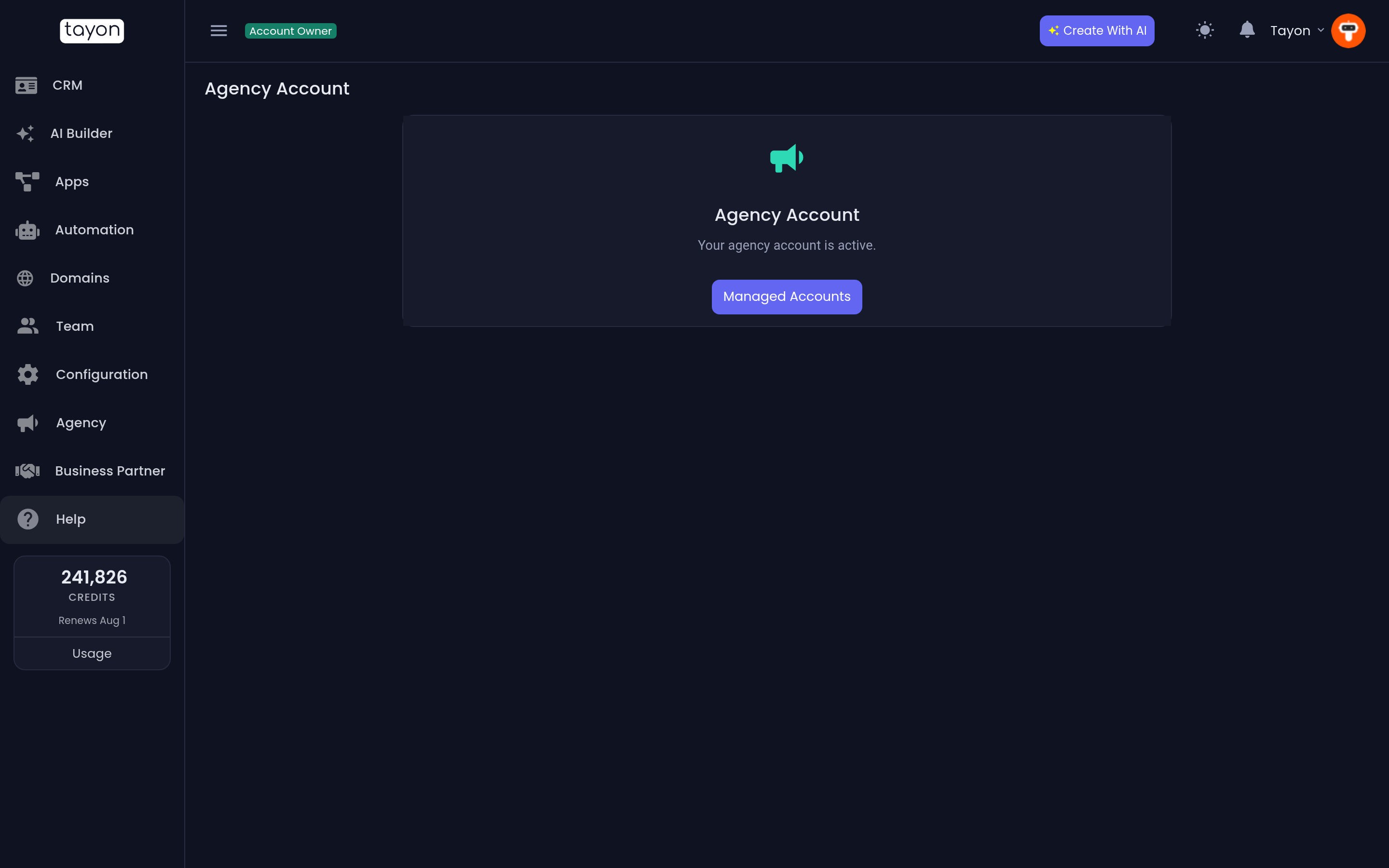
- Choose Agency in the sidebar. While your account is not yet an agency, this opens the Agency Account screen.
- Choose Activate agency account.
- Confirm with Yes.
The screen then reads Your agency account is active., and a Managed Accounts button opens your client list.
#Add a client
From then on, Agency in the sidebar opens Managed Accounts.
- Choose Agency in the sidebar.
- Choose New account access request.
- Enter the email address your client signs in to Tayon with, and choose Send.
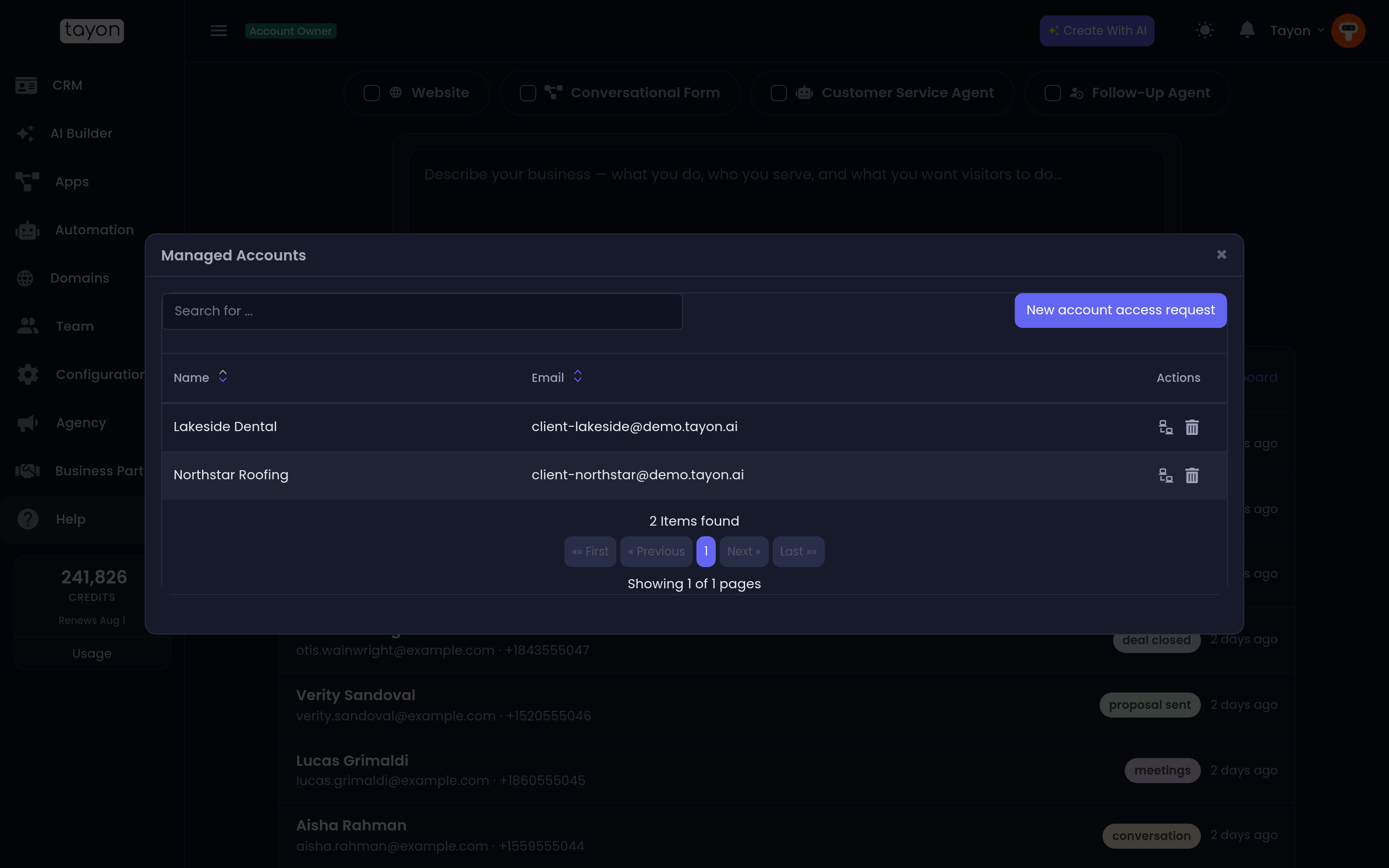
The client must already have their own Tayon account, and must be its owner — you cannot add a team member, or another agency. Tayon emails the client a request showing your name, email and phone, and the request waits until they accept it. Nothing is shared before then.
#Work inside a client’s account
- Open Agency in the sidebar.
- On the client’s row, choose Account Access.
The app reloads as the client’s account, and a pill in the top bar reads Accessing: followed by the client’s name, so you always know whose data you are looking at. Everything you do happens in their account.
When you are finished, choose Return to My Account in the top bar.
#Remove a client
On the client’s row in Managed Accounts, choose Remove account from my list. The client’s account carries on as normal; only your access ends.
#Your own team
Team members see Agency only if you give them the agency permission. A member with editor access can send new requests; only administrators can open a client’s account or remove one from the list.
#For clients
#Accept a request from an agency
When an agency asks to manage your account, you hear about it two ways:
- An email with an Access here link. It opens Agency Release Permission, showing the agency’s name, email and phone, with Accept and Refuse.
- An Access permission request button in your top bar. It opens the same request, with Allow and Reject.
Accept only if you know the agency and expect the request.
#Grant access yourself
If your agency asks you to set it up from your side instead:
- Open your account menu and choose Grant agency access.
- Type the agency’s email address and choose the search icon.
- Check the name, email and phone that appear — this is who you are letting in.
- Choose Send, then confirm with Yes.
This takes effect straight away. If no agency is found, the address is not a Tayon agency account; ask the agency which address to use.
Once an agency manages your account, the top bar reads This account is managed by followed by the agency’s name and email.
#Remove an agency
- Open your account menu and choose Remove agency permission.
- Confirm with Yes.
The agency loses access at once, and your account carries on as normal.
#When it goes wrong
Agency in my sidebar opens the plans card. Your plan does not include the agency program. It needs the Business plan.
My client says they never got the request. Ask them to check spam, or to look for the Access permission request button in their top bar. If they prefer, they can use Grant agency access from their side.
The request says the address is not found, or is already an agency. The client must sign up for Tayon first, with the address you entered. Agency accounts cannot be managed by another agency.
Updated: