Set up a booking calendar
Create a calendar, set how long appointments last, and choose the days and hours people can book you.
You’ll need: Team members need the Conversational Forms permission.
A booking calendar sets when people can book time with you: how long each appointment lasts, which days and hours are open, and how much notice you need. Once it exists, you can share it as a booking page, put it in a conversational form, or let your AI agent offer it.
AppsCalendar
The Events list shows every calendar on your account. It shows each calendar’s Session duration and the number of Scheduled future events.
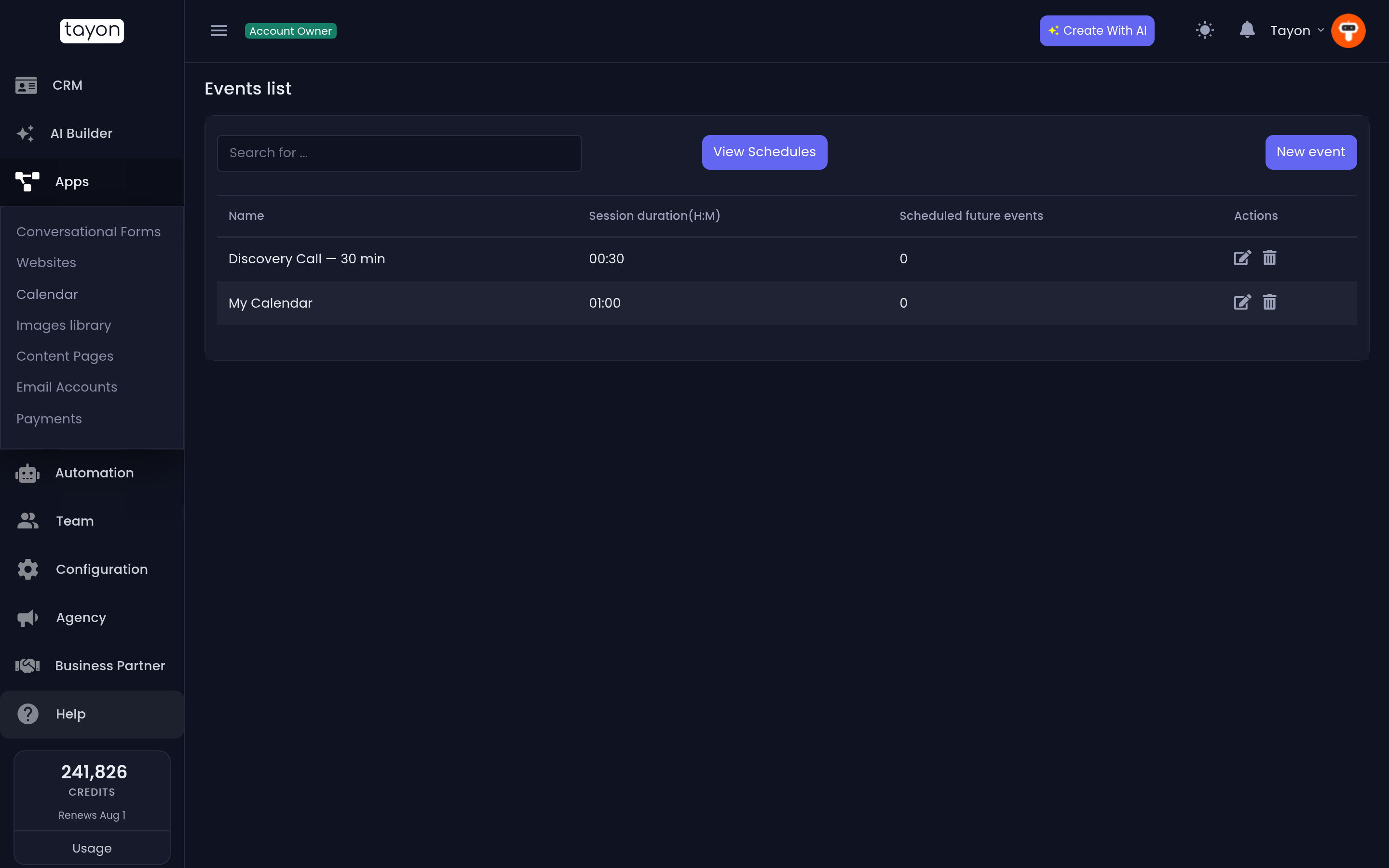
#Create a calendar
- Choose New event. Despite its name, this button creates a calendar.
- Enter a Name. Visitors see it at the top of your booking page.
- Set the Session duration in hours (H) and minutes (M).
- Choose your Time Zone.
- On the Available tab, switch on the periods you work and set their times (see below).
- Choose Save.
Once you save, a Public booking page card appears at the top of the calendar with the link to share. See Share your booking page.
#The settings
| Setting | What it does |
|---|---|
| Session duration | How long each appointment lasts |
| Interval between sessions | A gap left free after each appointment |
| Minimum antecedence for schedules | How much notice you need, in Day(s), Hours and Minute(s). Times sooner than this are not offered |
| Time Zone | The time zone your availability is written in. Booking pages show times in this zone |
| Schedules per session | How many people can book the same time. Leave it at 1 for one-to-one meetings |
| Max days into the future for appointments | How far ahead people can book |
| Description | Shown under the name on the booking page |
| Place | In person, Google Meet, Zoom, Telephone call or Custom. Choosing Custom adds a Custom place field |
| Address | Where an in-person meeting happens |
| Host | You, or a team member. The host is notified of bookings, and new leads from bookings are assigned to them |
| Background Color / Font Color | Colours used when the calendar is shown in a form |
#Set your available hours
Each day of the week has three periods: Morning, Afternoon and Evening. Switch on the periods you are available. Then set each one’s From and To times.
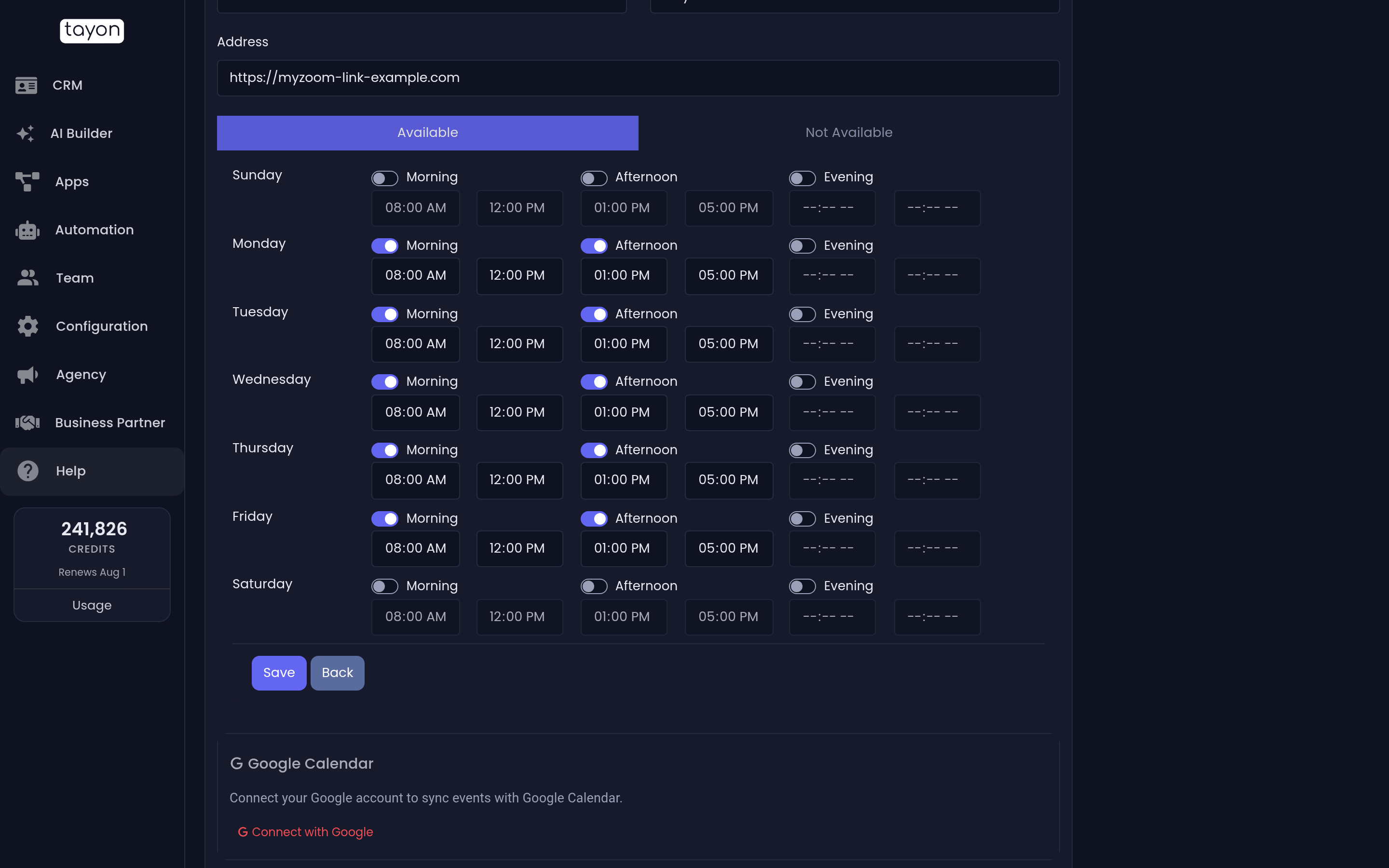
The periods let you leave a lunch break or a school run free without making two calendars. For example, you could open Monday morning from 09:00 to 12:00 and Monday afternoon from 14:00 to 17:30, and leave Monday evening off.
#How the times are worked out
Tayon fills each period with appointments from its start time. It adds the Session duration, then the Interval between sessions, then starts the next one. An appointment is only offered if it finishes before the period ends.
A morning from 09:00 to 12:00, with a 30-minute session and a 15-minute interval, offers 09:00, 09:45, 10:30 and 11:15.
A time is also hidden when:
- it is sooner than your Minimum antecedence for schedules
- it is further ahead than Max days into the future for appointments
- it is already fully booked (see Schedules per session)
- the host already has an appointment at that time on another of your calendars
- the calendar is linked to Google Calendar and that time is busy there. See Sync bookings with Google Calendar.
#Block out days off
To close a whole date, such as a holiday:
- Open the Not Available tab.
- Pick the date under Not Available Date and choose add date.
- Repeat for other dates, then choose Save.
To reopen a date, open the arrow next to it and choose Delete.
#See your appointments
Choose View Schedules on the calendar list to open your agenda of booked appointments across all calendars.
#Where your calendar is used
The same calendar can take bookings from several places at once. Every booking blocks that time everywhere.
- Your booking page: a link you share or embed on your website. See Share your booking page.
- Conversational forms: add a Calendar step and the visitor books without leaving the form. See Choose the right kind of question.
- Your AI agent: write
[calendar:Name]in a prompt and the AI can offer bookings from that calendar. See Tell your bot about your business.
Updated: