Invite your team
Add colleagues, decide what each of them can see, and use groups to share ownership of leads.
You’ll need: Account owner or administrator access.
Everyone you work with gets their own login. You decide what each of them can reach.
#Add a member
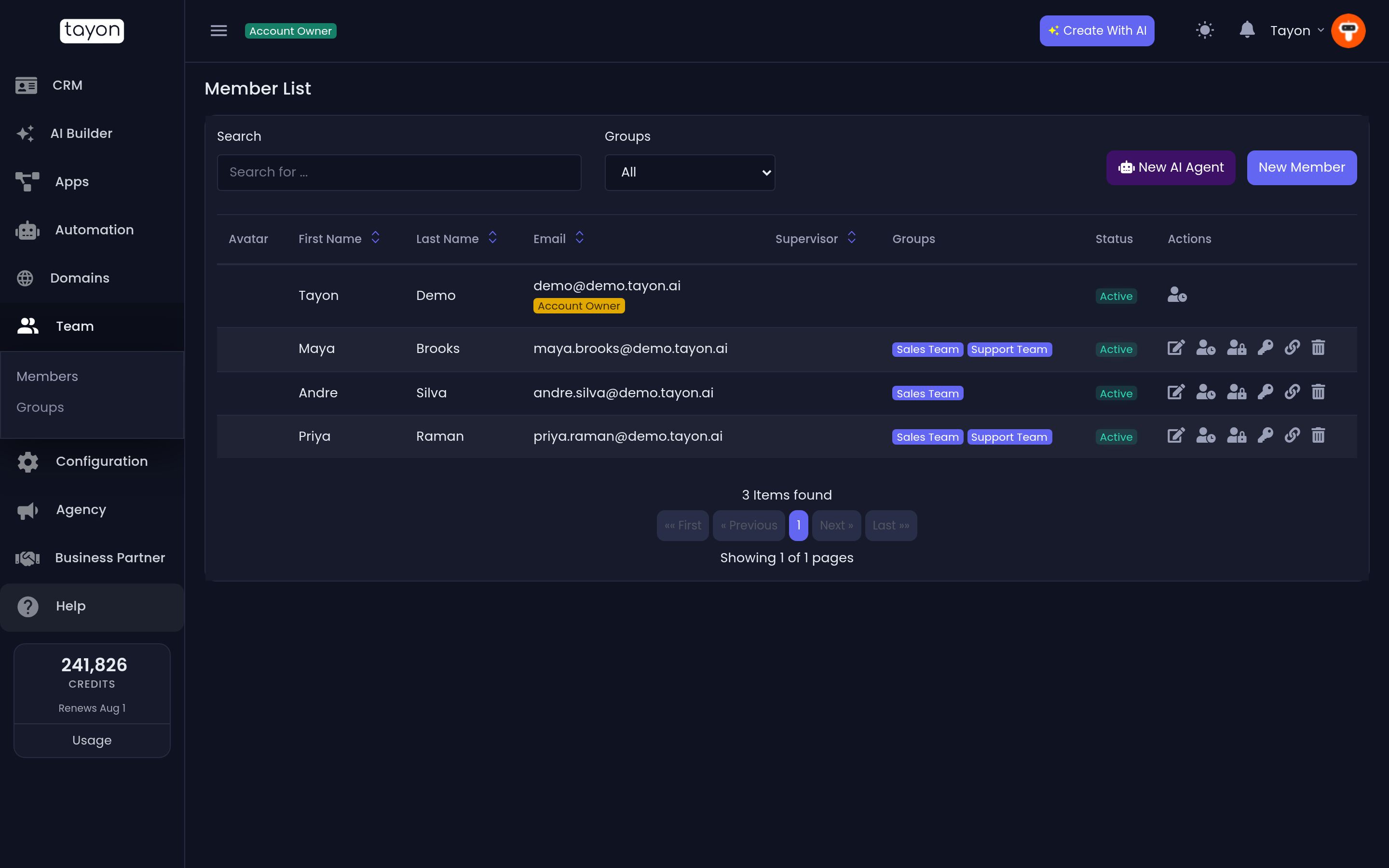
- Open Team in the sidebar, then Members.
- Choose New Member.
- Enter their name and email address.
- Set their permissions (below), and save.
They receive an email inviting them to set a password. Until they do, they appear in the list as pending.
#What permissions control
Permissions are granted per area, and they decide which sections of the sidebar that person sees at all.
| Permission | Gives access to |
|---|---|
| Leads | The CRM — leads, contacts, the pipeline board |
| Conversational forms | Building and editing conversational forms |
| Apps / Sites | Bots, flows, widgets and bot pages |
| AI Builder | Creating new projects with AI |
| Voice AI | Voice numbers, calls and campaigns |
| Team | Managing other members and groups |
| Settings | Tags, qualities, stages, connections and configuration |
| Domains | Buying a domain, connecting one you already own, and managing its DNS records |
Someone without a permission does not see a locked screen — the section simply is not in their sidebar.
#Three common setups
| Setup | Give them |
|---|---|
| Administrator — a second pair of hands | Everything |
| Editor — builds and works leads | Leads, Conversational forms, Apps / Sites, AI Builder |
| View only — reporting, oversight | Leads, Conversational forms |
#Groups
A group is a team that can own leads collectively — Sales, Support, a region.
- Open Team, then Groups.
- Create the group and give it a name.
- Add members to it.
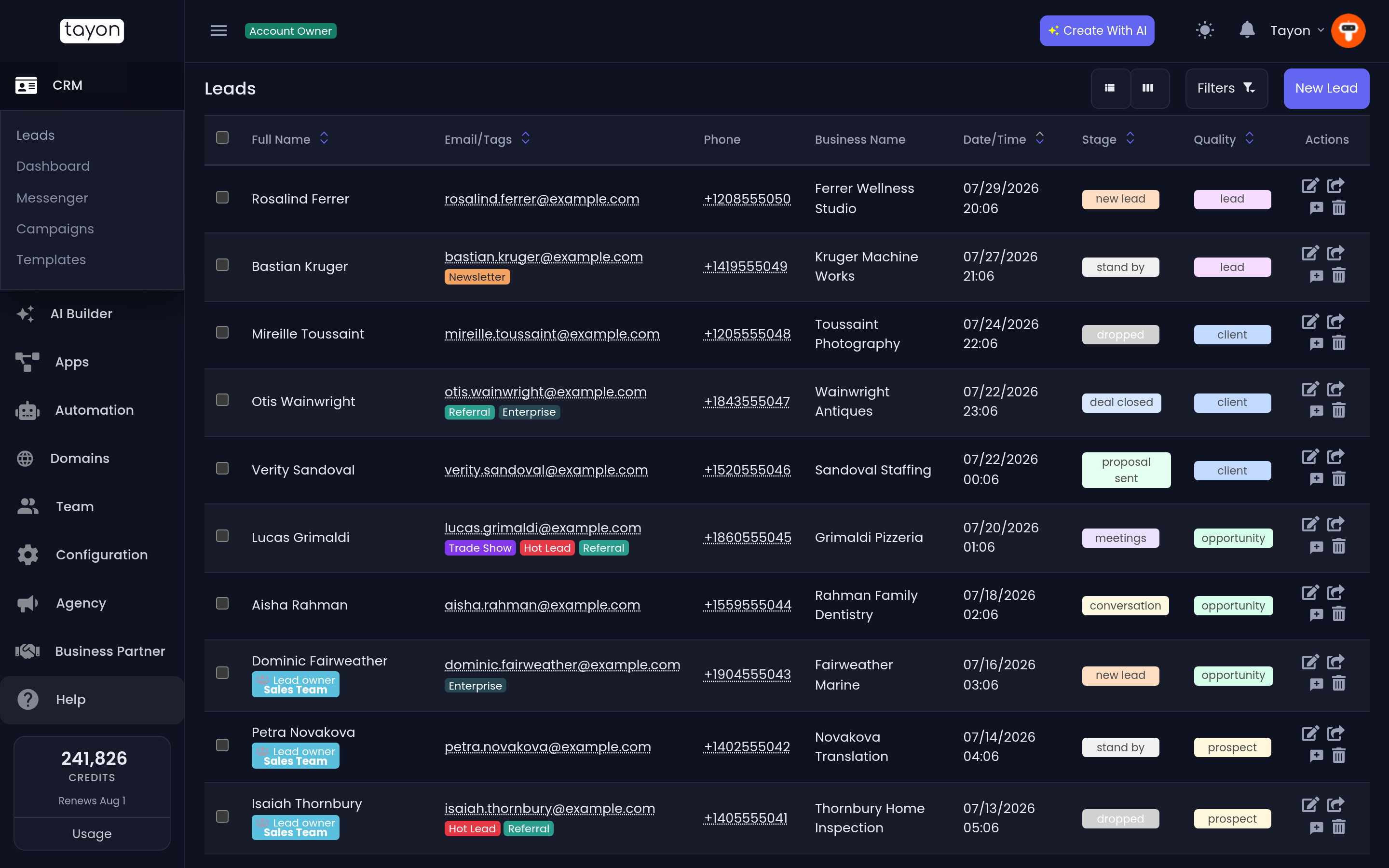
Once a group exists you can assign a lead to the group rather than to a person, and anyone in it can pick the lead up. This is what keeps leads moving when someone is away.
#AI agents as team members
An AI agent can be added as a member too, with its own name and its own place in the assignment list. Assign a lead to it and it replies on its own, in the Messenger, exactly where a human’s replies would appear.
That is covered in the Bots and widgets section.
#Send a member a login link
A login link signs a member in with no password. It is useful when someone is locked out, has not set a password yet, or needs to get in from a new device while you are on the phone with them.
- Open Team, then Members.
- On the member’s row, choose the key icon, Login link.
- Choose Copy to Clipboard and send the link to the member privately.
The dialog shows who the link is for and the date it stops working — Valid until a date 90 days away.
A few rules worth knowing:
- One live link per member. Creating a new link turns off the previous one, so if a link may have gone to the wrong person, create a new one and the old one stops working.
- Who can create one. The key icon only appears for people with administrator access to Team — the account owner, or a member given that level.
- Who can receive one. Ordinary team members only. The icon does not appear on the account owner’s row, on AI agents, or on members linked in from another account. Account owners create their own links under Integration Keys — see Integration keys and API usage.
#Removing someone
Removing a member revokes their access immediately. Their leads are not deleted — reassign them first, or they stay owned by a user who can no longer sign in.
Updated: