Review your AI calls
Find any call your AI agent handled, read its transcript and summary, and see how the conversation ended up on the lead.
businessYou’ll need: The Business plan, and the Voice AI permission.
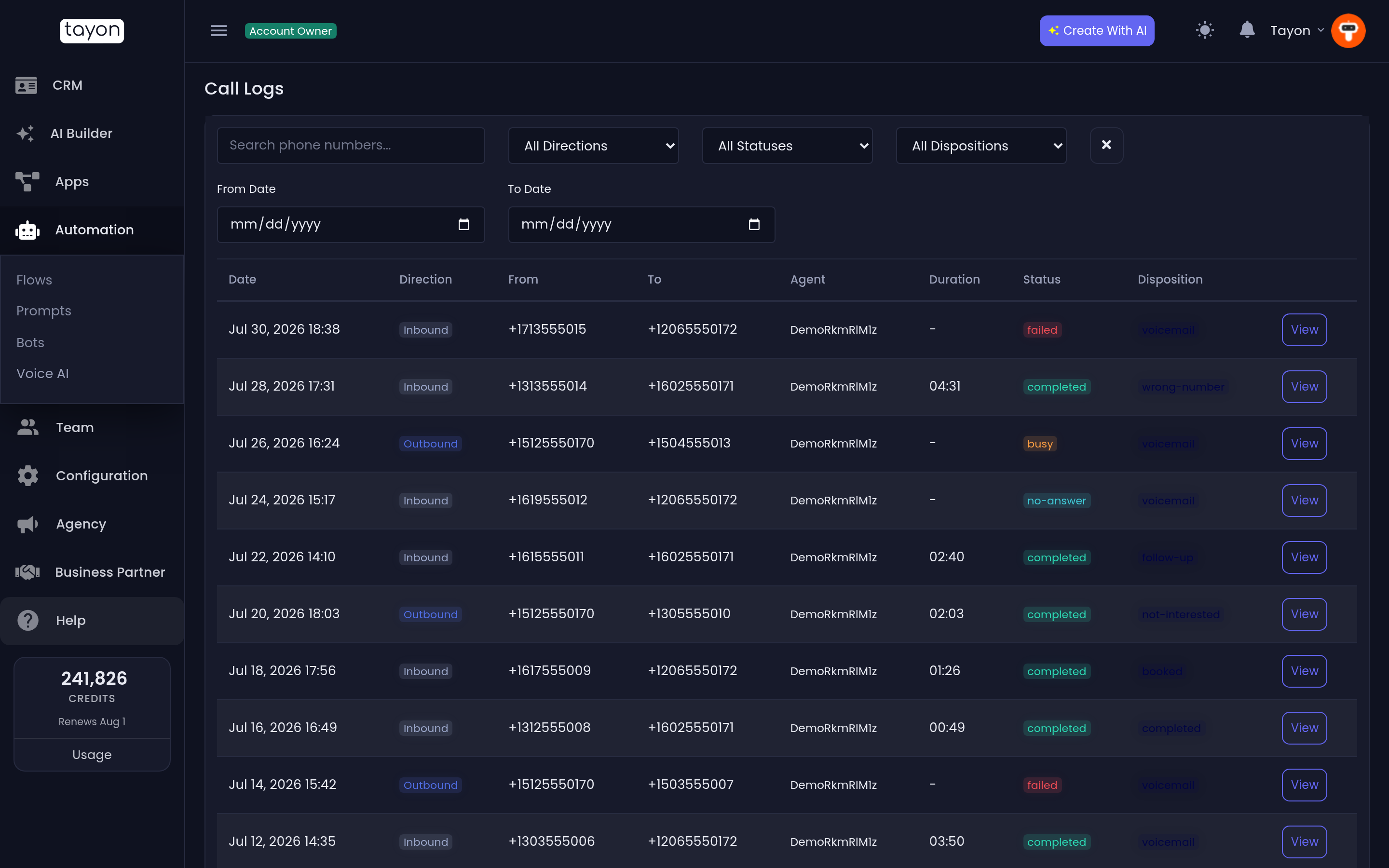
Call Logs lists every call your AI agent has answered or made. Use it to check what the agent told a caller, to find calls that need a person to follow up, and to improve the agent’s prompts.
AutomationVoice AICall Logs
#Read the list
Each row is one call:
| Column | What it shows |
|---|---|
| Date | When the call started |
| Direction | Inbound (someone called you) or Outbound (the agent called them) |
| From / To | The two phone numbers |
| Agent | Which AI agent handled the call |
| Duration | Minutes and seconds, or - if nobody spoke |
| Status | How the phone call itself went |
| Disposition | How the conversation ended, in the AI’s judgement |
Status describes the phone line. Disposition describes the outcome:
| Status | Meaning |
|---|---|
| completed | The call connected and ended normally |
| in-progress | The call is happening now |
| busy | The line was busy |
| no-answer | Nobody picked up |
| failed | The call could not be placed or connected |
| Disposition | Meaning |
|---|---|
| booked | The caller booked an appointment |
| follow-up | Someone should get back to this person |
| not-interested | The caller declined |
| transferred | The call was handed on |
| voicemail | The call reached voicemail, or nobody spoke |
| wrong-number | The caller wanted a different business |
| completed | The conversation ended with nothing more to do |
#Find a call
Use the controls at the top. They combine, so you can ask for outbound calls in March that ended in a booking.
- Search phone numbers… matches part of the From or To number.
- All Directions, All Statuses and All Dispositions filter the list.
- From Date and To Date limit it to a date range.
- The × button next to the filters clears all of them.
#Open a call
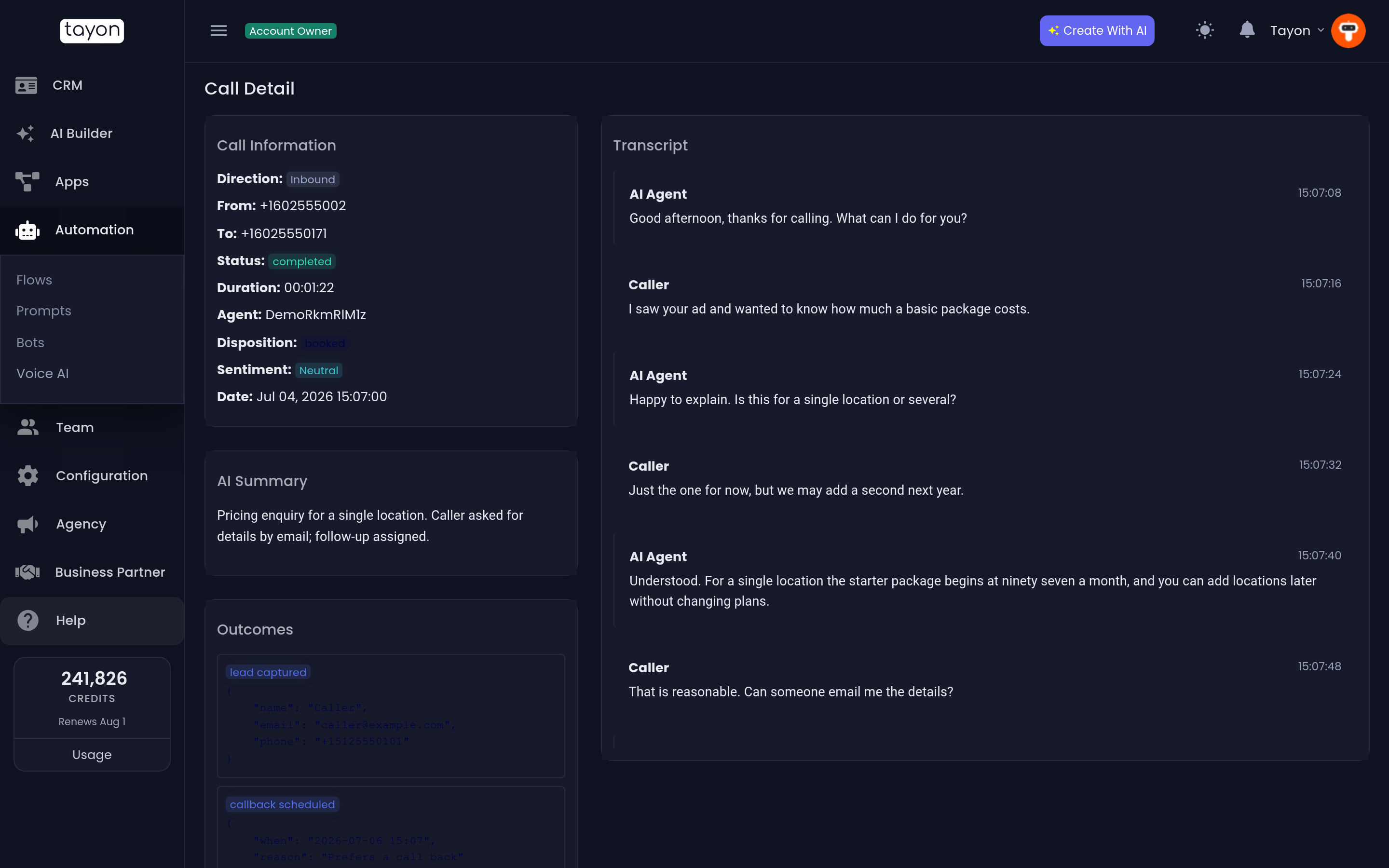
Choose View on any row. The Call Detail page has two sides.
On the left, Call Information repeats the direction, numbers, status, duration, agent and disposition. It adds:
- Sentiment: Positive, Neutral or Negative, as the AI read the caller’s mood.
- AI Summary: a short summary of what was said and agreed.
- Outcomes: details the agent recorded during the call, such as the time of a booking.
On the right, Transcript shows the conversation turn by turn, with timestamps. Caller lines are the person and AI Agent lines are your agent. A grey line marked Tool: means the agent took an action during the call, such as saving the caller’s details, arranging a callback or ending the call.
Choose Back to Call Logs to return to the list.
#The call on the lead
You do not have to come to Call Logs to see what was said. A few seconds after a call with a conversation, Tayon adds a note to the caller’s lead. The note includes:
- the caller’s details, the date, direction and duration
- the sentiment, the disposition and the AI summary
- the full transcript
If the caller’s number does not match any lead, Tayon creates a new lead with that phone number and attaches the note to it. Every inbound call therefore ends up in your CRM, even from people who have never contacted you before. See Work a single lead.
#Use the logs to improve the agent
Read a handful of transcripts each week. When the agent gets something wrong, fix the prompt it came from:
| What went wrong | Where to fix it |
|---|---|
| A wrong fact, price or opening time | The agent’s Business Info prompt |
| Wrong tone, too long, or asked the wrong questions | The agent’s Instructions prompt |
| Hung up too early, or kept talking after the caller was done | Call & Ending Rules on the number’s Configure dialog |
| The first sentence | Welcome Greeting on the number’s Configure dialog |
See Tell your bot about your business and Get your Voice AI phone number.
Updated: