Use a picture as your design
Give Tayon one picture of how the top of your site should look. It rebuilds that as your hero and designs the rest of the site in the same style.
You’ll need: An account with credits available.
If you already know how your site should look — from a mock-up in a design tool, or an image you generated — give Tayon that picture. Your site then starts from your design instead of one Tayon picks.
#What the picture should be
- The top of the page: the menu bar and the first big section, the one with your headline. One picture, not a whole page.
- PNG, JPEG or WebP, up to 8 MB.
- At least 600 pixels wide. A smaller picture is refused with That picture is too small to design a site from.
- A desktop view. The phone layout is designed from it.
#What happens to it
- The hero is rebuilt from the picture — the same headline and text, the same layout, the same colours. Photos are cut out of the picture and marked in the editor so you can replace them with the originals.
- The rest of the site is designed in its style. There is no picture of your other sections, so they are new. They use the picture’s colours and type, and follow the same design rules.
- Fonts are matched to the closest available font, not identified exactly.
Because the look is settled, the chat stops asking about colours and fonts. It asks what the site should say instead.
Nothing is read or charged when you attach the picture. It is read when the site is built, as part of the usual cost of building a website.
#Add it on the start screen
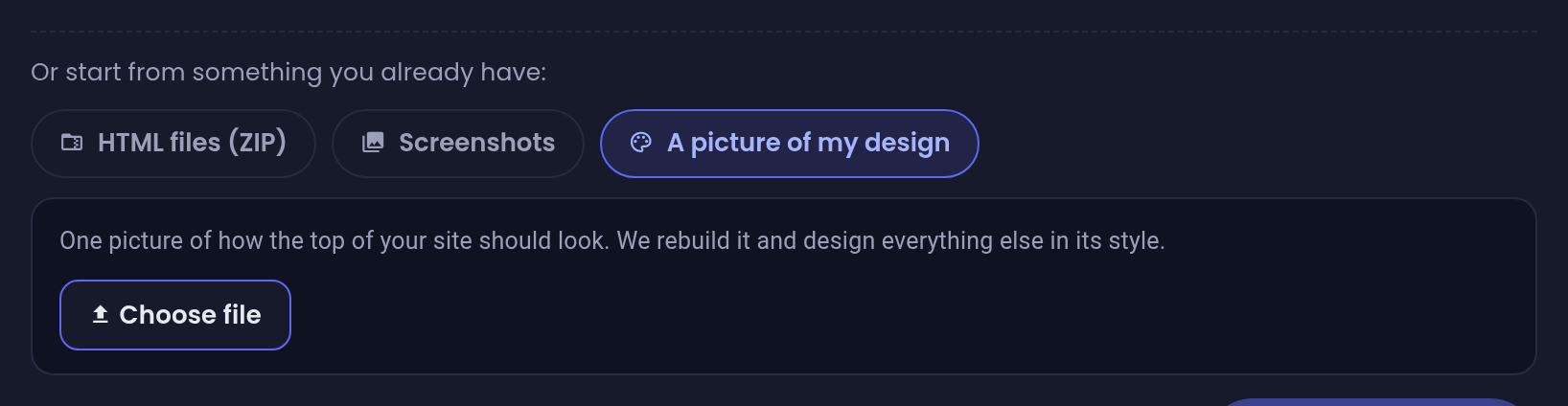
- On Home or in AI Builder, under the description box, choose A picture of my design.
- Choose Choose file and pick the picture.
- Wait for the chip Design picture attached.
- Tick what you want to build, describe your business, and choose Start building.
What the picture does depends on what you tick:
| You tick | What the picture is used for |
|---|---|
| Website on its own | The design of the whole site, as described above |
| Website and other things | The website’s design. Its colours also go to the form and the agent |
| Conversational Form or Customer Service Agent, without Website | Colours only. There is no website to design |
The chat still runs, so you still describe your business. See Build a website with AI.
#Add it in a builder’s chat
You can also add the picture while you are describing your site, in the website builder, the board for several things built together, or the funnel builder.
- Choose Attach image (the paperclip) next to the chat box, and pick the picture.
- Under the preview, choose This is my design instead of Use in project or For AI analysis.
- Send the message. If you typed nothing, Tayon sends Use this image as the design of my site.
Only the first picture of that message becomes the design. Any others are added to the project as ordinary pictures.
A project has one design picture. Attach another the same way and it replaces the first.
#Remove it
- On the start screen, choose × on the Design picture attached chip.
- In the website builder, choose × on the Design reference attached chip above the chat box. The site is then designed the usual way.
Do this before you generate. Once the site is built, its design comes from the picture; to change it, ask in the editor’s chat — make it dark and luxurious — or start a new site.
#If it did not work
- The site came out in Tayon’s own style. If the picture could not be read, the site is still built, just without your design. Try a sharper picture of the top of the page only.
- You regenerated later and the design was gone. Tayon keeps the picture for seven days. After that, regenerating builds an ordinary site. Attach the picture again first.
- The words or photos are wrong. Edit them in the editor like any other site. See Edit your website by clicking it.
Updated: