Build a website with AI
Turn a description of your business into a multi-page site with its own design, copy and images — then open it in the visual editor.
You’ll need: An account with credits available.
A website build gives you a real site — one to five pages, each with its own sections, written copy, colour scheme and typography — that you can then edit by clicking on it.
#Open the website builder
There are two ways in, and they land in the same place:
- From AI Builder, choose Website.
- Or from Websites, choose New AI Builder Website.
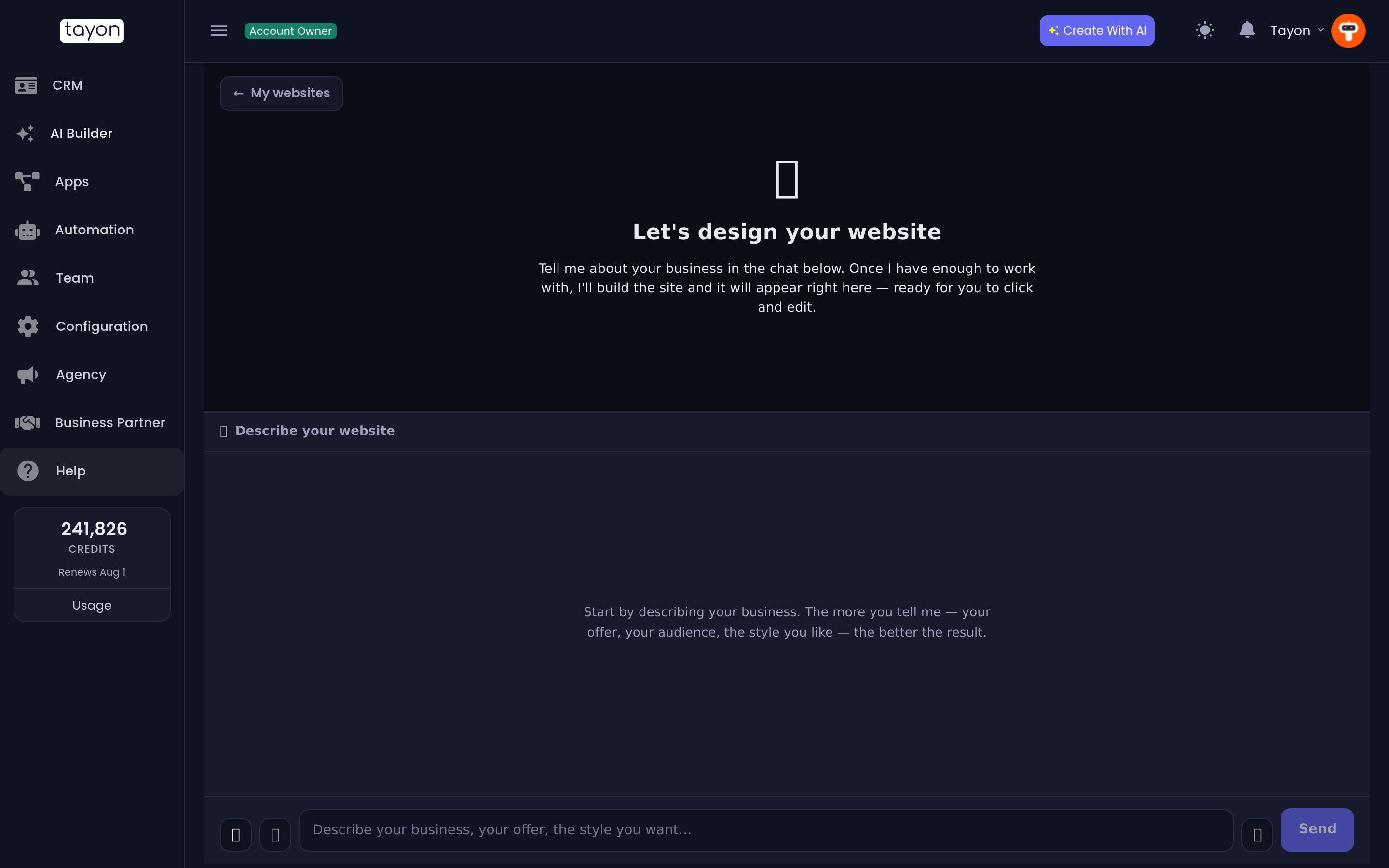
You arrive at a single screen: a large empty panel with Let’s design your website, and a chat box underneath it.
#Already have a site, or a design?
You do not have to start from a description:
- Your old site’s HTML files — choose Import an existing site on the empty panel. See Import an existing website.
- Screenshots of your old site — the same button, then the Screenshots tab. See Rebuild a website from screenshots.
- A picture of the look you want — attach it in the chat and choose This is my design. See Use a picture as your design.
The start screen on Home and in AI Builder offers the same three options.
#Describe the site
Tell it about your business — what you offer, who it is for, the feel you want. Attach your logo and any photos you want used. Describe what you want so the builder gets it right goes into what matters most.
When your answers cover enough, the panel changes to Ready to build your website with a Generate website button.
#Real pictures, or placeholders
The ready card has a checkbox, Generate AI images for the whole site. It is off by default.
- Ticked — every picture slot your uploads did not fill gets an AI-generated image made for that spot. The note under the box gives the price per image (75 credits). The progress card then counts Generating images 4 of 14 before the editor opens.
- Unticked — every picture is an on-brand placeholder you fill in later from the editor, for free with your own photos.
#How big your plan lets a site be
On some plans the ready card also shows a note such as Your plan builds sites of up to 3 pages, 12 sections and 5 AI images — enough for a complete, focused site. The builder plans the site to fit. A paid plan removes the cap.
The cap is on what the AI adds. A site at the limit stays fully editable, translatable and publishable. You just cannot add another section or page until you delete one or upgrade. See Plans and credits.
#Generate it
Press Generate website. The panel becomes a progress card reading Designing your website… and the conversation stays visible below it. Give it a minute or two.
Behind that progress bar, in order:
- Art direction. A colour system, a font pairing, corner and spacing style are chosen to suit your industry — and deliberately steered away from what your last few sites used, so two sites from one account do not look like twins. If you named a colour, that wins.
- Structure. How many pages, what each one is called, and which sections go on each — hero, services, testimonials, pricing, FAQ, contact and so on. A simple business gets a single page with anchor links; a broader one gets real pages and a proper navigation bar.
- Copy. Every section is written for your business, not filled with sample text.
- Sections. Each section is built, checked and repaired one at a time.
- Images. Your uploads are placed where they fit. If you ticked the checkbox, the remaining slots get AI images; otherwise each gets an on-brand placeholder marked for you to fill in.
When it finishes, the site opens in the visual editor and the chat adds a line telling you it is ready.
#What you get
- A draft site. It is not public and costs nothing until you publish it.
- A working preview you can click straight into. See Edit your website by clicking it.
- A navigation bar that already links your pages or anchors correctly.
- Image slots marked Click to add an image wherever the builder had nothing of yours to use and you did not ask for AI images.
- A name. The project and the site are named after your business, taken from everything you told the chat — not a date. You can rename it from the Websites list.
#Fix the direction without starting over
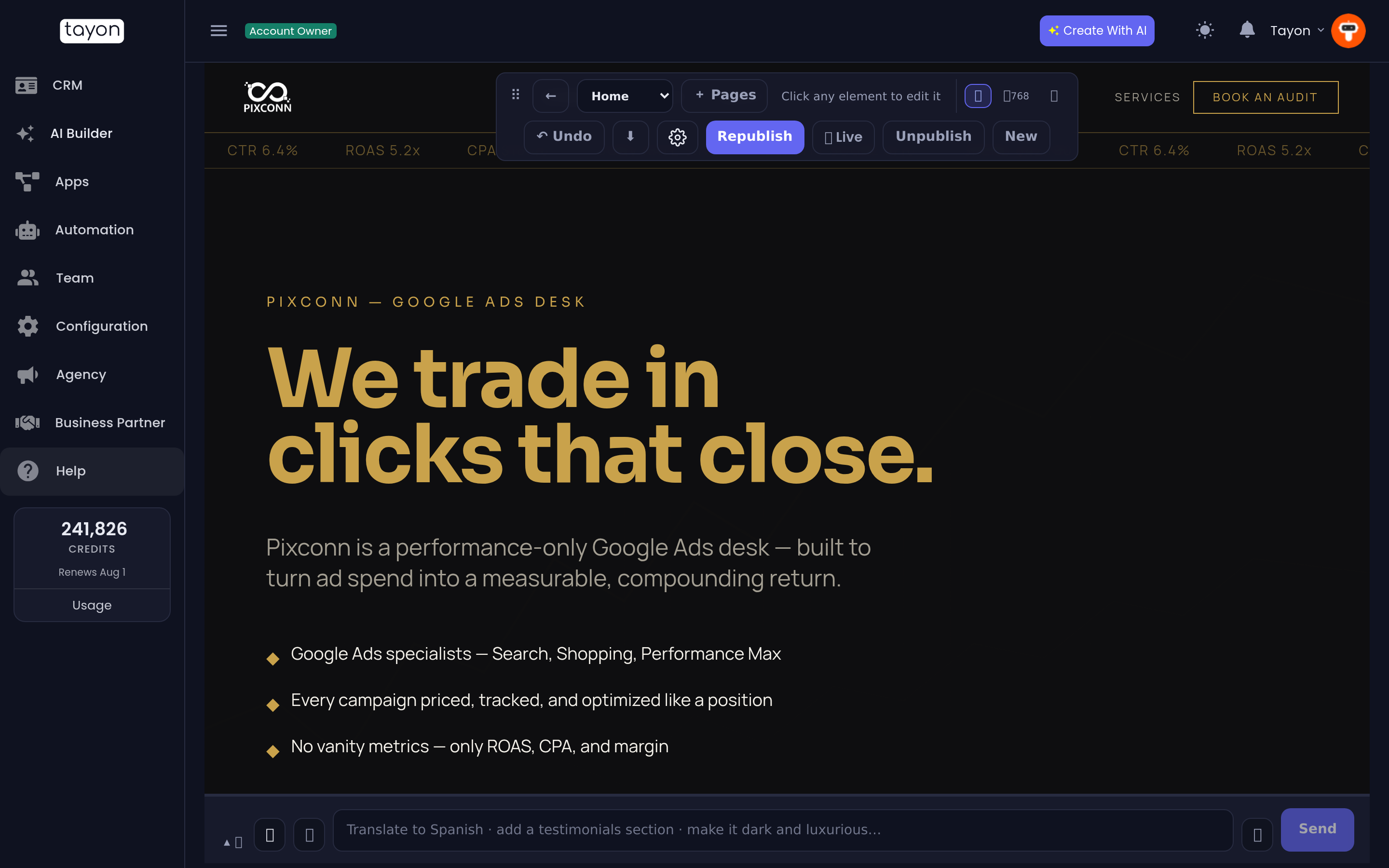
In the editor’s chat box you can ask for whole-site changes:
- make it dark and luxurious — swaps the entire palette
- change the background to a warm off-white — changes only the roles you named, and keeps text readable against them
- translate to Spanish — adds Spanish alongside your site, at its own address. See Translate your website
- add a testimonials section — adds one to the page you are looking at
For anything smaller, click the element itself.
#Fill the empty pictures later
Skipped AI images at build time? Ask the chat to generate the missing images. It counts the empty slots and tells you the price before doing anything — I found 9 empty image slots. Generating all of them costs 675 credits. Shall I go ahead? Choose Yes, generate them or Not now.
Where the same picture suits two pages, it is reused and costs nothing. If your plan caps AI images per site, the chat tells you how many it can still make.
#If the build was not what you wanted
- Add the missing detail to the chat — the audience, the offer, the colour.
- Press New in the toolbar to start a fresh site, or keep this one and edit it.
Your old site is not deleted when you start a new one. Both stay in Websites and under Your Projects.
Updated: