Rebuild a website from screenshots
No files for your old site? Upload screenshots of it, put them in order, and Tayon rebuilds it with the same words, pictures and look.
You’ll need: An account with credits available.
Screenshots are the way to move a site you can see but cannot download — one made in a hosted builder, for example. Tayon reads the pictures and rebuilds each section with the same text, pictures and look, ready to edit.
If you have the site’s HTML files, import those instead. Files carry more detail than pictures, and you see a free report before anything is charged.
#Take good screenshots
| How many | Up to 12 for one site |
| Format | PNG, JPEG or WebP |
| Size | Up to 8 MB and 20,000 pixels tall each, and at least 320 pixels wide |
- Full-page captures work best. Most browsers can capture a whole page, not only the part on screen.
- Overlapping captures are fine. A section that appears in two of them is only built once.
- Leave out what is not the page. The browser frame, cookie notices and chat bubbles are ignored, but a clean capture reads better.
- Phone screenshots work. The phone layout is rebuilt from them, and the wide-screen layout is designed for you.
#Add and arrange them
From the start screen (on Home or in AI Builder):
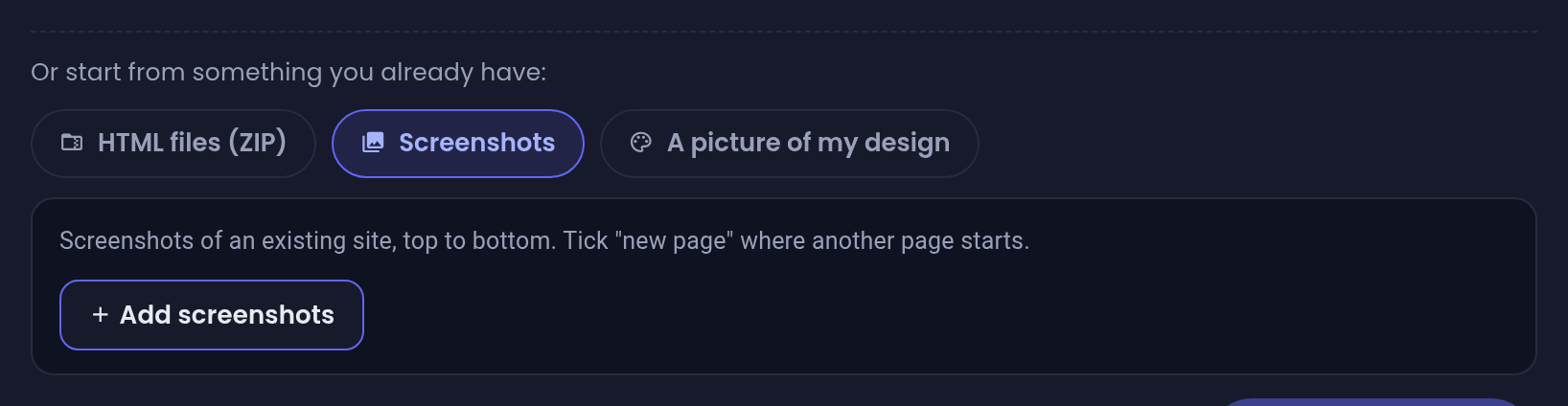
- Under the description box, choose Screenshots, then Add screenshots.
- Put them in order from the top of the page to the bottom. Use ↑ and ↓ to move one.
- Where another page starts, tick new page on its first screenshot and type a Page name.
- Choose Start building.
Website is ticked for you and stays ticked. The description box is optional.
From the website builder: on an empty site, choose Import an existing site, then the Screenshots tab. It works the same way. The box for a new page is called A new page starts here, and you can also give the site a name. Choose Rebuild from these screenshots (about N credits) to start.
The page and section limits are the same as for an HTML import.
#What you get
When the build finishes, the site opens in the visual editor. It is a draft until you publish it.
A screenshot cannot show everything, so some things are filled in for you:
- Photos and logos are cut out of your screenshots, so they will be soft. The editor marks each one so you can replace it with the original.
- Fonts are matched to a font of the same kind — serif, sans-serif and so on. The exact font is used only when it is available.
- Links. With several pages, the menu links to them. Buttons go to the contact section if there is one. A link whose destination cannot be worked out stays plain text.
- Hidden content, such as the answers inside a closed FAQ, is not in the picture, so it is not in the rebuild either.
- A footer you did not capture gets a single copyright line. Tayon does not invent an address or phone number for your business.
Check the words and links before you publish, then replace the soft pictures.
#If something goes wrong
| Message | What to do |
|---|---|
| That is more than 12 screenshots. | Remove some. Overlapping captures of the same page are the first to go. |
| That screenshot is too large. | Keep each file under 8 MB and 20,000 pixels tall. Split a very long page into two captures. |
| That image is too small to be a screenshot of a page. | Capture the full width of the page. |
| That file is not a PNG, JPEG or WebP image. | Save it in one of those formats. |
| We could not make out a web page in those screenshots. | Try sharper, full-width captures. |
If the rebuild does not finish, the screen shows The rebuild did not finish. Choose Try again — your screenshots are kept, so you do not upload them again.
Updated: