Translate your website into other languages
Add a language to your site, translate a whole page or a single element, correct the translation by hand, and choose how visitors switch languages.
You’ll need: A website already generated by the AI Builder, and credits for the machine translation.
Your site is written once, in its main language, and translated. Each language
you add is published at its own address — /es/, /pt-br/ — next to the
original, which is never touched.
Because every language shares one design, they cannot drift apart: change the layout in the main language and every translation follows.
#Add a language
- In the editor, choose ⚙ to open Site settings, then the Languages tab.
- Under Add a language, pick one from Choose a language….
- Choose ✨ Translate.
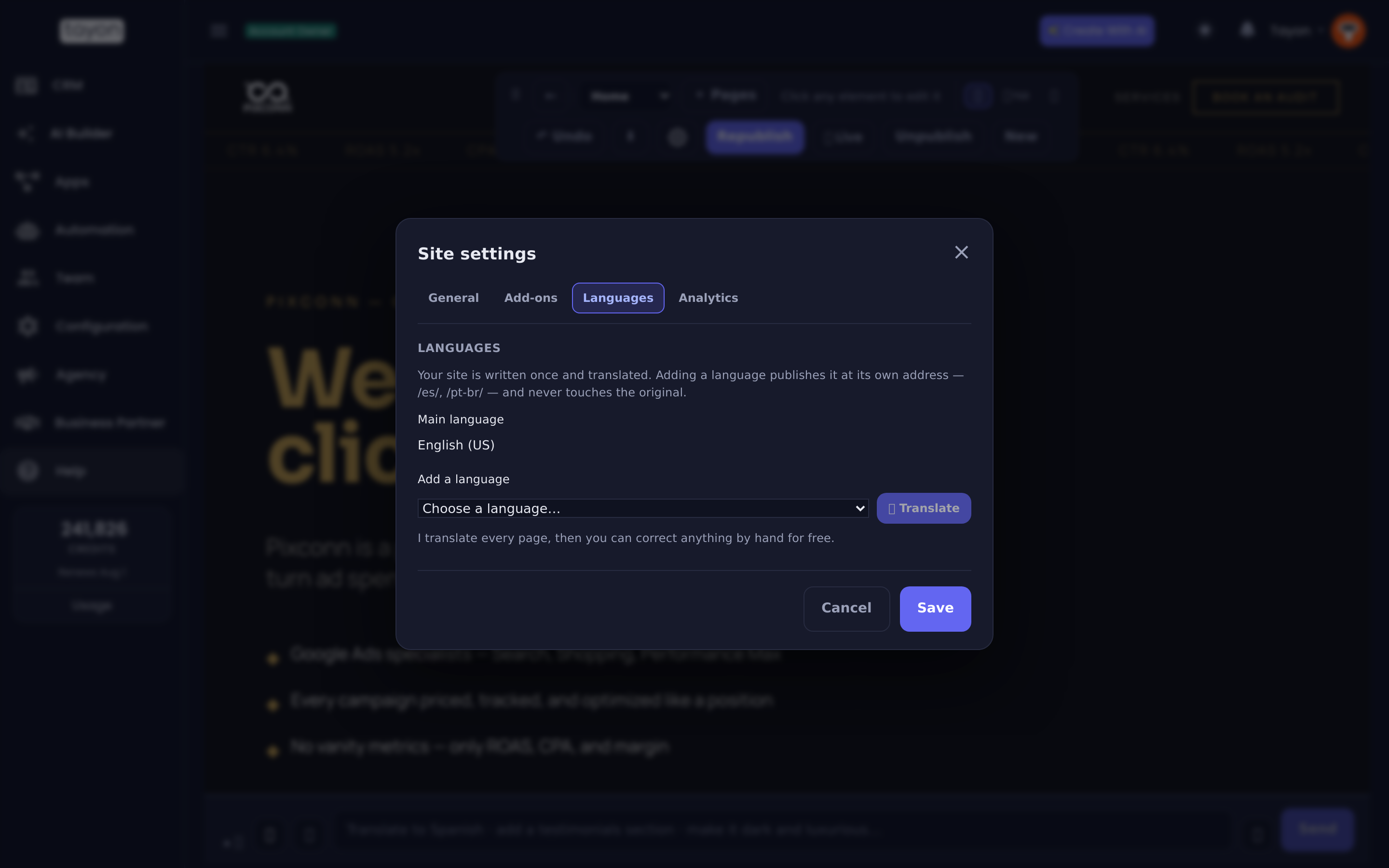
Picking a language only selects it. Nothing starts — and nothing is charged — until you choose Translate, so a wrong pick costs nothing.
You can also ask in the chat: translate the site to Spanish. Either way, the chat confirms that the new language is on the way and that your main site stays exactly as it is. Every page is translated in the background; you can keep editing meanwhile.
Twenty-one languages are offered, including English (US) and English (UK), and Portuguese (Brazil) and Portuguese (Portugal) as separate choices. Right-to-left languages such as Arabic and Hebrew are not supported.
#Check how far it got
Each language on the Languages tab shows its address and a count such as 184/190 translated · 6 edited by you · 2 need a look. While a translation is running it shows its progress instead.
If some text is still missing — a page you added later, or a run that stopped short — choose Translate what is missing. Only the gaps are translated.
When you edit text in the main language, the languages that already exist are updated to match automatically.
#Correct the translation by hand
- Switch the language menu in the toolbar to the language you want to fix.
- Click the text in the preview.
- Type over the translation in the panel.
- Choose Save translation.
Saving is instant and free, and a later machine translation never overwrites what you wrote by hand. To give a piece back to the machine, choose ↺ Go back to the main language’s words.
While you are in a translation, the editor shows Text, links and images — structure and design are edited in the main language. The panel offers only the text, the link destination and, for a picture, Image for this language — so a German page can show a different photo. Moving, deleting, styling and AI instructions all happen in the main language.
#Translate one page or one element
You do not have to translate everything at once.
- One page — switch to the language in the toolbar, open the page, and choose ✨ Translate this page. A confirmation says how many pieces of text have no translation yet; choose Translate the page. What you wrote by hand is left exactly as it is.
- One element — click it while in the language and choose ✨ Translate this. Every box in the panel fills with a translation you can correct, then Save translation.
#Pages that are never translated on their own
A page whose text you supplied word for word — a privacy policy you pasted, say — is published exactly as you wrote it and is not machine-translated. The Languages tab lists those pages so they are not overlooked.
You can choose Translate it anyway on one. The warning is worth reading: a machine translation of a policy or terms goes out under your name, and nobody can promise it is accurate enough to rely on. Otherwise, switch to the language and type the translation yourself.
#Let visitors switch language
Once the site has two languages, the Language switcher settings appear on the Languages tab:
| Setting | Choices |
|---|---|
| Where | In the footer, In the header, Header and footer or Don’t show one |
| How it looks | Letters (EN, PT, ES), Country flags or Flags and letters |
Flags are the only way a visitor can tell Portuguese (Brazil) from Portuguese (Portugal), or US from UK English — both show as the same two letters.
The switcher is added when the page is published, so redesigning the header can never lose it. Choose Save in Site settings to keep your choice.
#Publish a translation
On a site that is already published, a new language goes live by itself as soon as it is translated — the chat ends with …and live at /es/. On a draft, every language goes live at its own address the first time you publish.
Corrections you make by hand reach the live site the next time you press Republish.
#Remove a language
Choose Remove next to the language on the Languages tab and confirm. Its pages stop being published. Everything you wrote by hand is kept, so adding the language back later is instant and free.
#If something looks wrong
- The text is still in the main language — that text has no translation yet. Choose Translate what is missing, or type it yourself.
- The chat says structure and design changes are made in the main language — switch the toolbar’s language menu back to the main language and ask again.
- The translation did not finish — the chat says so. Everything it managed is saved; run it again and it picks up only what is still missing.
Updated: