Write your privacy policy and other legal pages
Create privacy, terms and disclaimer pages yourself or with AI, edit them, and attach them to your websites, forms and bot pages.
You’ll need: Team members need the Conversational Forms permission. Creating a page with AI uses credits.
Content pages are the text pages your sites link to, such as a privacy policy, terms of service, a disclaimer or any other page you need. You write a page once, then attach it to any number of websites, forms and bot pages. When you edit it, every one of them shows the change.
AppsContent Pages
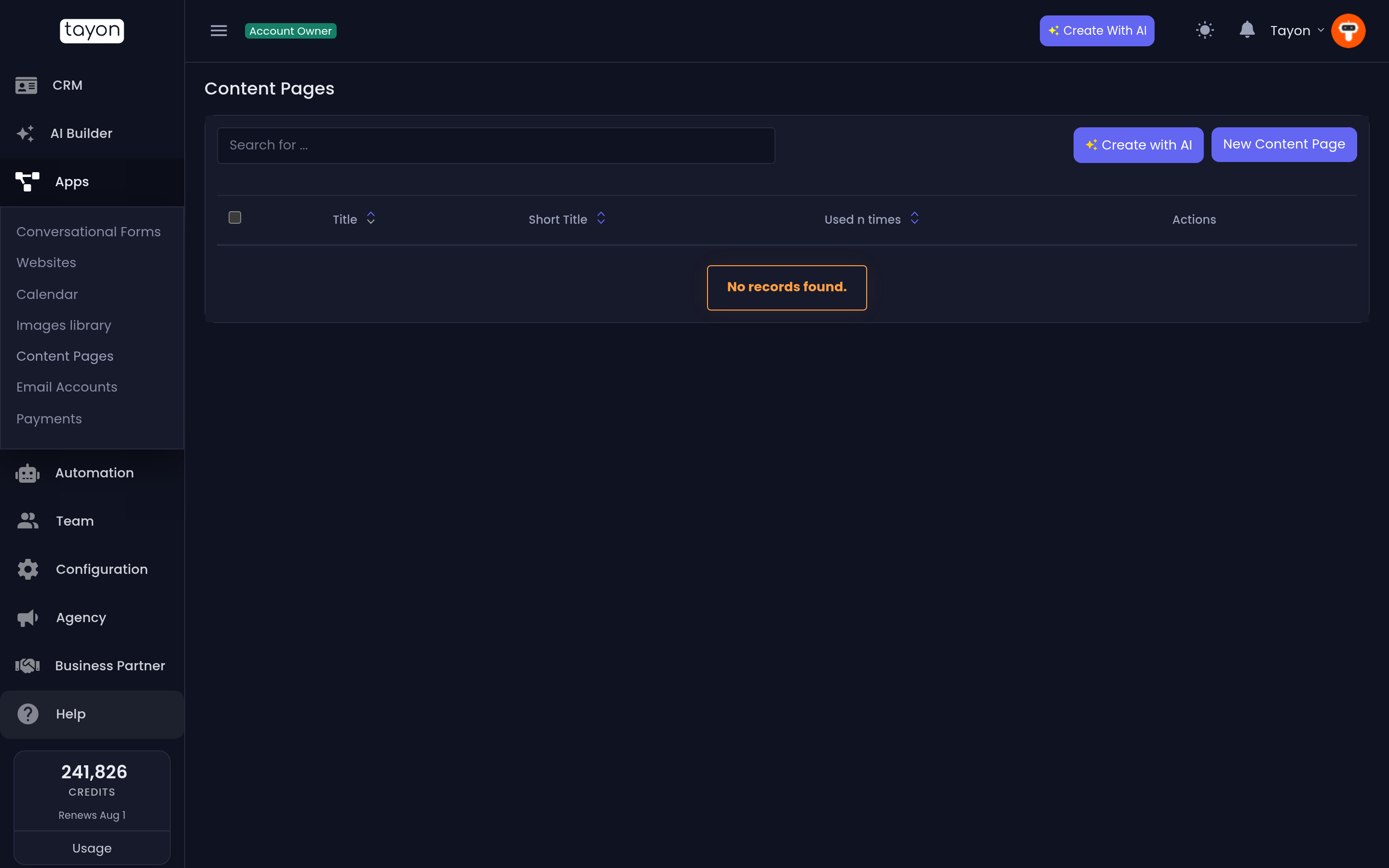
The list shows each page’s Title, its Short Title, and Used n times, which counts how many conversational forms use the page. Each row has buttons to View Content Page, Edit, Duplicate and Delete.
#Create a page with AI
The quickest way to get a first draft:
- Choose Create with AI.
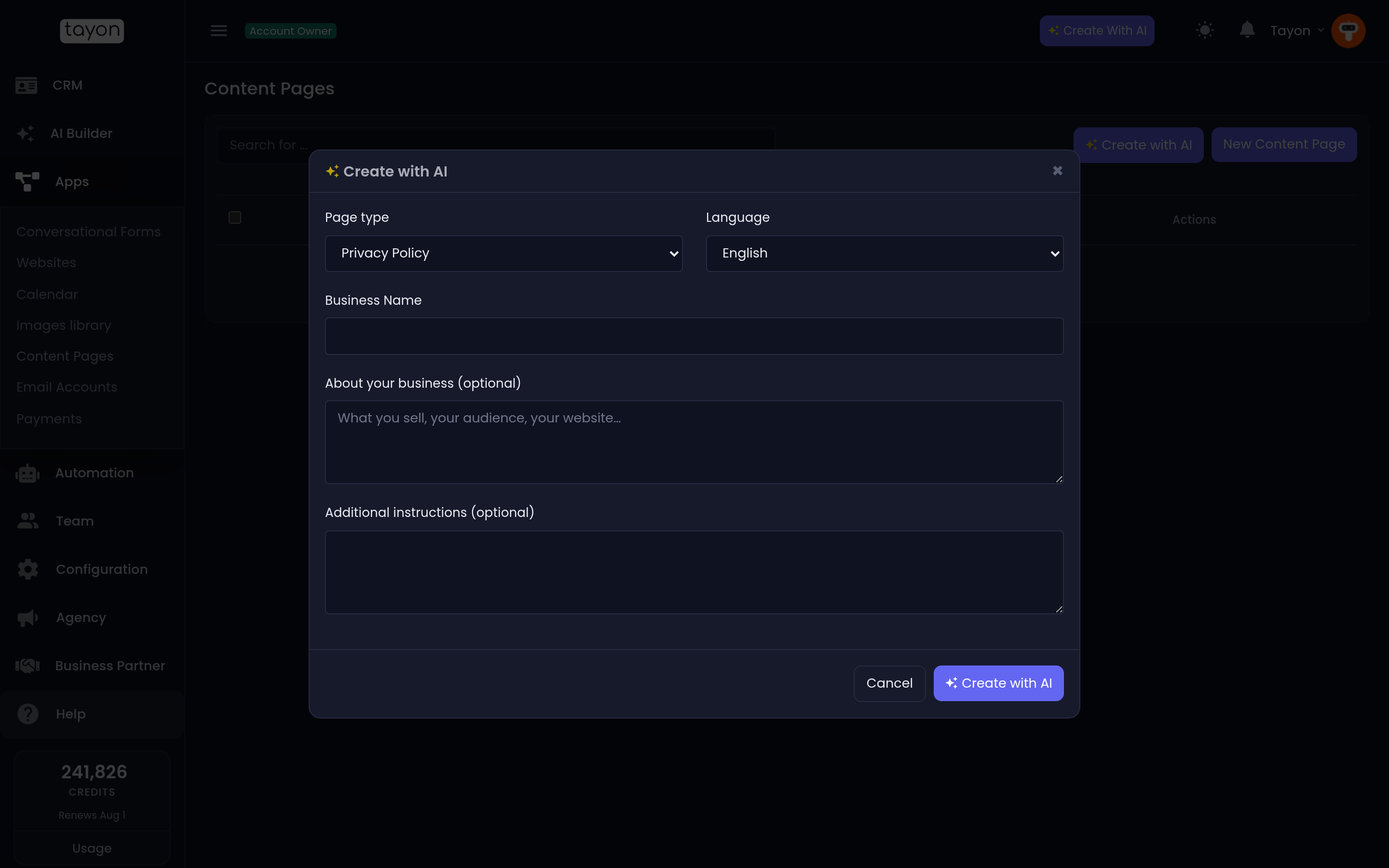
- Pick the Page type: Privacy Policy, Terms of Service, Disclaimer or Custom page.
- Pick the Language: English, Português or Español.
- Enter your Business Name.
- Under About your business (optional), add what you sell, who your customers are and your website address. The more you add here, the less generic the page.
- Add anything specific under Additional instructions (optional), such as “we use cookies for analytics” or “we operate in the EU”.
- Choose Create with AI.
Writing the page can take up to a minute. When it is done, the page opens in the editor so you can review it. It is named after its type and your business, such as Privacy Policy - Acme Dental. Its Short Title is the type, such as Privacy Policy.
For a Custom page, the instructions field becomes Instructions and is required. Use it to say what the page is, for example “a refund and cancellation policy for a monthly subscription”.
Creating a page with AI uses credits, like other AI writing in Tayon. The amount depends on how long the page is.
#Write or edit a page yourself
- Choose New Content Page, or the Edit button on an existing page.
- Enter the Title.
- Enter the Short Title, up to 30 characters. This will be the title displayed on the content page.
- Write or paste the text in the Content Editor.
- Save.
Duplicate makes a copy of a page. This is useful when you need a version for a second brand or a second language. Edit the copy’s title so you can tell the two apart.
#Where your pages are used
Nothing is attached automatically. A page only appears on a site after you attach it there:
- Websites: in the website’s publish settings, under Legal pages. Attached pages are published inside the site and linked from the footer of every page. See Publish your website.
- Bot pages: choose a page for Privacy Policies, Terms of use and Legal notice on the bot page’s settings. See Publish your bot as its own page.
- Conversational forms: a form can link a privacy policy, terms and a disclaimer. These forms are what Used n times counts.
Editing a page later updates it everywhere it is attached. You do not have to re-attach it.
#Delete pages
To delete one page, choose Delete on its row. To delete several, tick them and choose Delete content pages.
Administrators, and the person who created a page, also see Send Content Page to other user. It copies the page into another Tayon account, identified by the account’s email address. For several pages at once, tick them and use Send content pages to other user.
Updated: