Set up your site before you publish
Set the link preview image, browser tab icon, title and description, chat bubble, legal pages and analytics that go into every published page.
You’ll need: A website already generated by the AI Builder. Custom code fields are limited to the account owner.
Site settings holds everything about your website that is not on the page itself: what a shared link looks like, the icon in the browser tab, the title search engines show, the chat bubble, legal pages and analytics. All of it is baked into the published pages.
#Open Site settings
- Open the site in the editor.
- Choose ⚙ in the toolbar.
- Work through the tabs — General, Add-ons, Languages and Analytics.
- Choose Save.
Pictures — the link preview image and the tab icon — are saved the moment you upload them. The text fields wait for Save. On a published site, saving republishes it for you. Languages is covered in Translate your website.
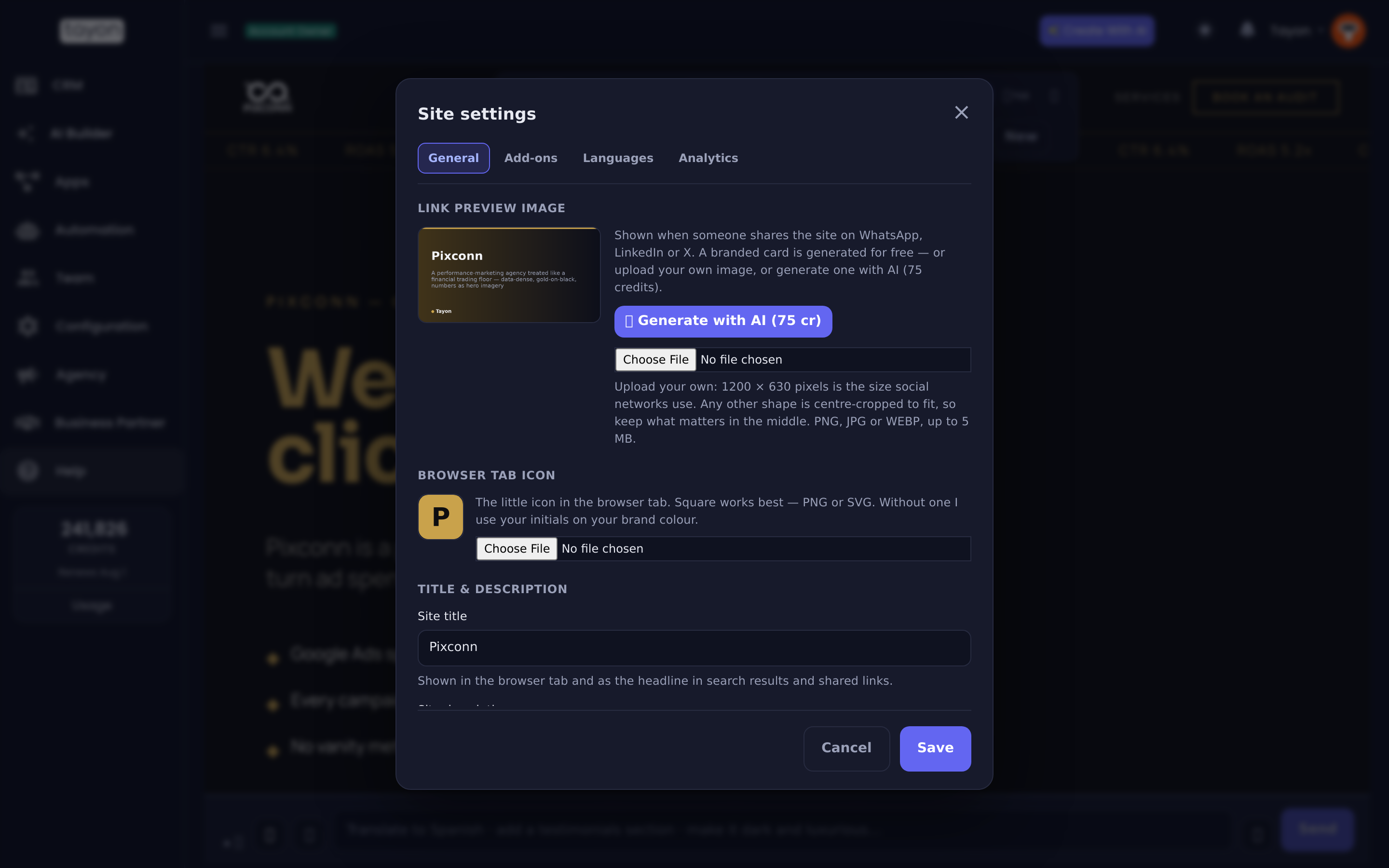
#General
| Field | What it does |
|---|---|
| Link preview image | The picture shown when someone shares the site on WhatsApp, LinkedIn or X — see below |
| Browser tab icon | The little icon in the browser tab (the favicon). Upload a square PNG or SVG. Without one, the site shows your initials on your brand colour; Use the generated icon goes back to that |
| Site title | The browser tab, the headline in search results and in shared links |
| Site description | The summary under your title in search results — around 155 characters works best |
| Branding | Hide the “Powered by …” badge |
The Link preview image starts as a branded card, generated for free. To change it:
- Upload your own. 1200 × 630 pixels is the size social networks use. Any other shape is centre-cropped to fit, so keep what matters in the middle. PNG, JPG or WEBP, up to 5 MB.
- ✨ Generate with AI (75 cr) makes one for you.
- Back to the branded card undoes either.
You can also attach a picture in the editor chat and ask for it to be the link preview or the tab icon.
Both title and description arrive pre-filled with what the site would publish anyway. Change them only if you want something different; leaving them alone keeps them following the site’s name.
The description is written from what you told the builder about your business, in the site’s language.
The Powered by badge sits in the bottom-right corner of every published page. Removing it needs a plan that includes it — the panel tells you which, and the change takes effect the next time you publish.
#Add-ons
- Web bot — adds your chat bubble to every page of the published site. It also appears in the editor preview so you can see it before publishing. See Add the chat widget to your website.
- Legal pages — attaches content pages you have written (a privacy policy, terms) as pages inside the site, linked from the footer of every page.
Editing a content page later republishes every site that shows it, so the live text never drifts from what you wrote.
#Analytics
- Google Analytics 4 measurement ID, Google Tag Manager container ID and Meta Pixel ID. Type only the id — Tayon builds the correct snippet. Each one is format-checked, so a typo is caught before it reaches the page.
- Keywords and Additional meta tags for verification codes and robots
directives. Only
<meta>tags are accepted here, one per line, and they cannot carry scripts. - Custom code in
<head>and Custom code before</body>take arbitrary markup and are therefore restricted to the account owner. Team members do not see them, and anything they submit is ignored.
Updated: