Set up your whole business with Quick Start
Answer a few questions and Tayon builds your website, conversational form and AI assistant, with your domain, email addresses and an AI phone number.
You’ll need: Access to the AI Builder. The AI phone number needs the Business plan; email addresses need a domain and a plan that includes email.
Set up your business is a short guided flow that sets up everything a new business needs in one go: a web address, a website, a conversational form, an AI assistant, email addresses and a phone number the assistant answers. Every step except describing your business is optional.
#Open it
On a new account, the home screen shows a card Set up your whole business in a few minutes. Choose Start the quick setup. The card disappears once you have finished the flow.
Your answers are saved at every step, so you can close the page and pick up where you left off.
#1. Domain
Your web address is the domain everything will use: your site, your form, your email. Choose one option:
- Buy a new domain — search for a name that is free to register and buy it without leaving the flow. After paying, you come straight back to the next step, and the domain’s progress shows on the last screen. See Buy a domain.
- Use a domain I already own — enter it, and Tayon copies its records and shows the two nameservers to set at your registrar. Once they are on screen, you can choose Continue; the connection finishes in the background when the nameservers change. See Connect a domain you already own.
- A domain I have on Tayon — one you bought or connected before. Only shown if you have one.
- Skip for now — start on your free Tayon address and add a domain later.
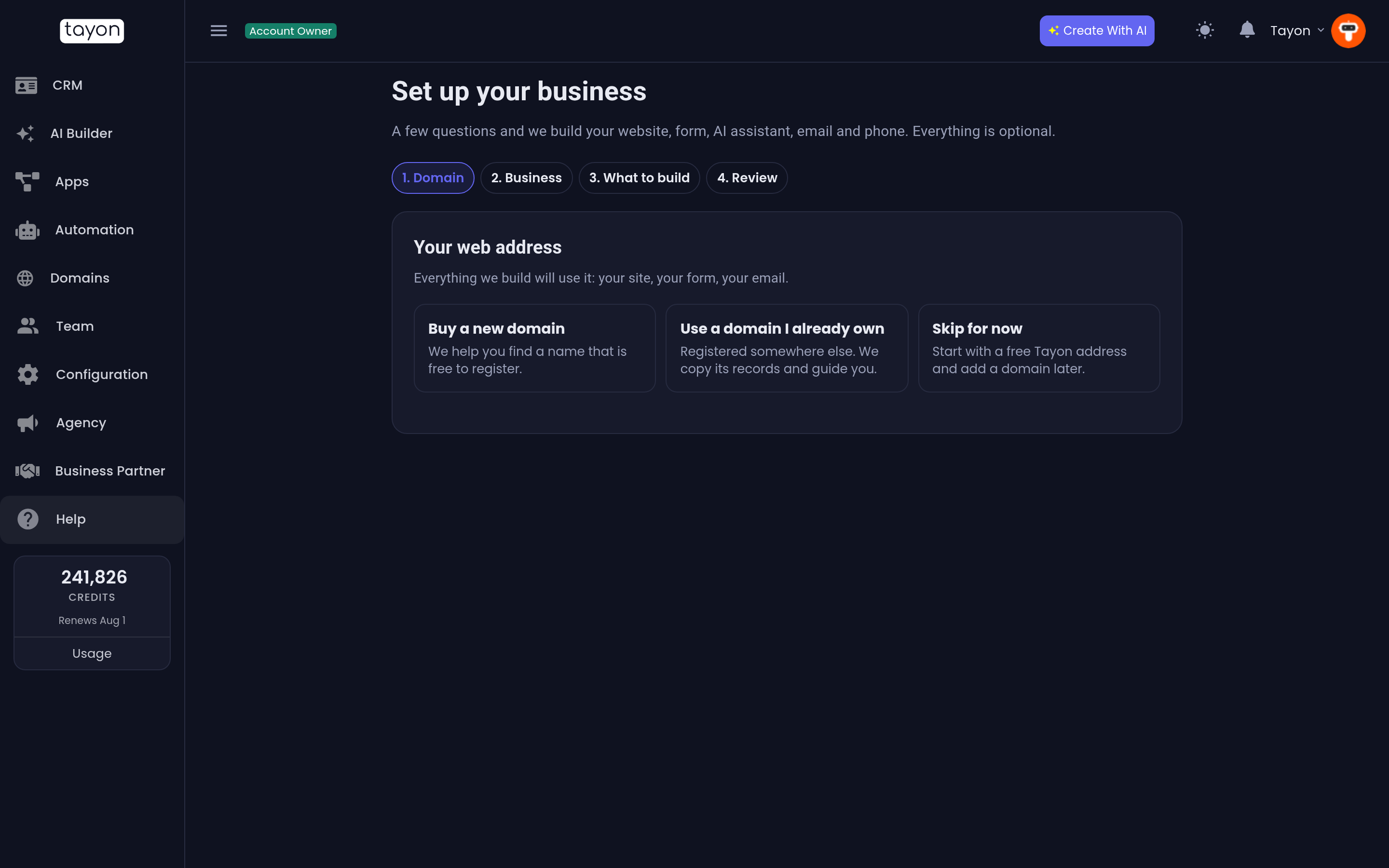
#2. Business
Enter your Business name, then describe what it does, for whom, and where. This description is what everything is built from, so write as much as you like: services, prices, opening hours, the kind of customers you want. The more detail, the closer the first version gets.
You need a name and at least a sentence or two to continue.
#3. What to build
Tick what you want. The first three are ticked for you:
- Website — a complete site. With a domain, it goes on the domain itself.
- Conversational form — captures leads and bookings one question at a time.
With a domain, it goes on
form.followed by your domain. - AI assistant — answers your customers on your site, around the clock.
- AI phone number — a number your AI assistant answers. Pick the Country and, if you like, an Area code (optional).
#4. Email
This step appears only when you chose a domain and your plan includes email.
Enter up to three address names — Tayon suggests contact and your first name.
Leave them empty to skip; you can add more later in Email accounts.
#5. Review and build
Ready to build lists the domain, the business, what will be built and the email addresses. Underneath, it reminds you that building uses credits as in the AI Builder, and that a domain you bought is paid separately.
Choose Build everything.
#While it builds
We’re building your business shows each piece as it gets ready. It takes a few minutes, and you can leave the page — it keeps going.
- Website, form and AI assistant — Being created…, then Ready to review.
- Website address and Form address — connected to your domain as soon as both the domain and the build are ready.
- Email addresses — created straight away; they start working once the domain is ready, and their email records are written for you.
- AI phone number — the number, linked to your assistant when it is ready.
When everything is done the screen reads All set. Choose Open your project to review the site and publish it when you are happy, or Go to home.
#If something goes wrong
- Not enough credits to build — add credits, then open the project to start.
- Couldn’t connect automatically — connect the domain from the project with Use a domain you have on Tayon.
- No number available right now — add one later in Voice.
- Something went wrong on the project — open it to retry.
Updated: